Supervision
HIPAAtherapy includes built-in supervision tools so clinical supervisors can oversee their supervisees’ work directly in the platform. Supervisors can review and sign notes, view supervisee caseloads, and maintain a clear audit trail of all review activity.
How Supervision Works
Supervision in HIPAAtherapy is based on a supervisor–supervisee relationship between staff members. Once a practice administrator assigns a supervisor to a clinician, the supervisor gains access to that clinician’s clients and notes, and the clinician can submit notes for supervisor review.
Here’s the typical workflow:
- An admin assigns a supervisor to a clinician on the Staff page
- The clinician writes notes for their clients as usual
- The clinician requests a supervisor review on any note
- The supervisor sees pending review requests in their navigation
- The supervisor reviews the note and either signs it or requests changes
- The review history stays attached to the note as a permanent record
Setting Up Supervision
Assigning a Supervisor
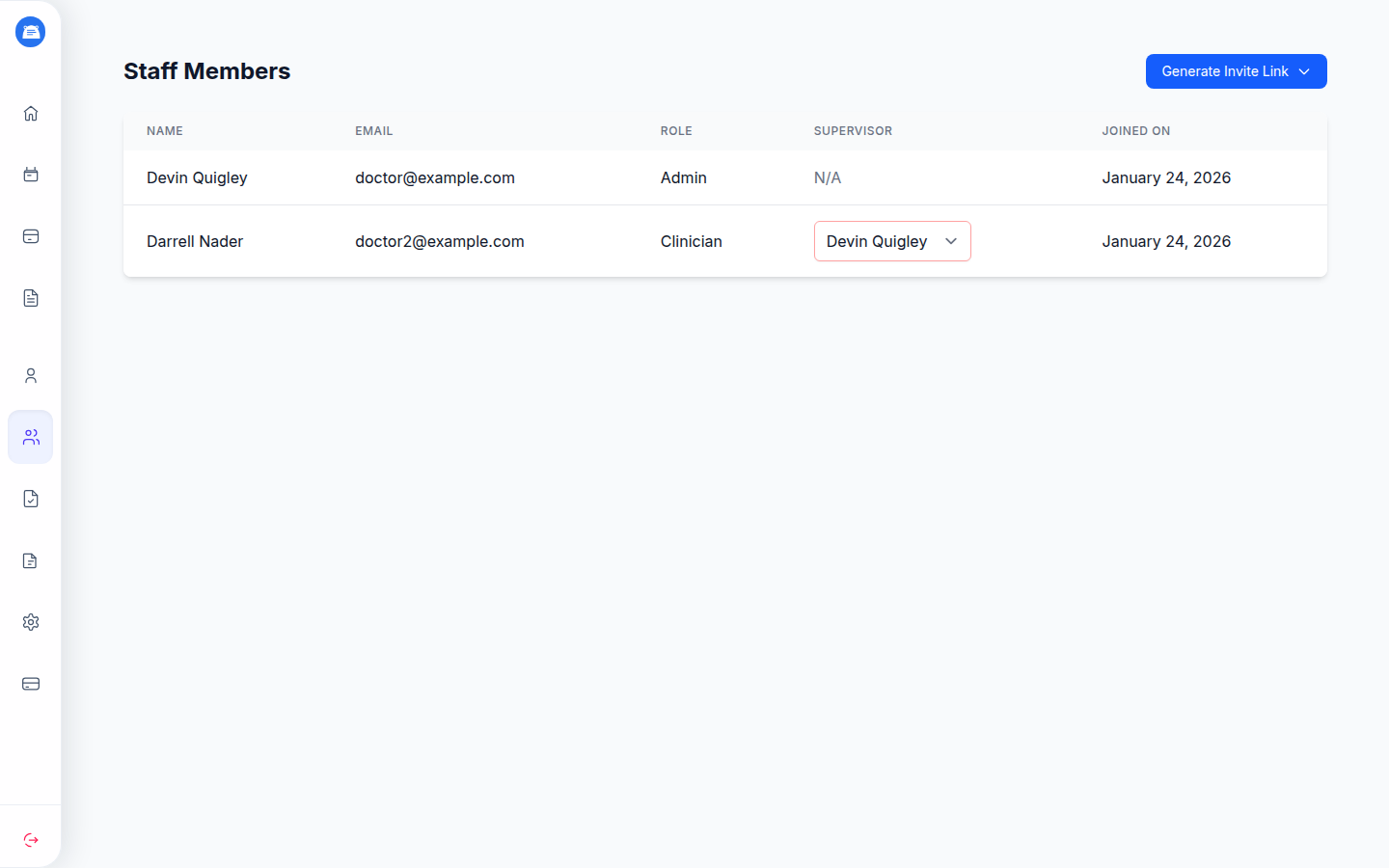
Only practice administrators can assign supervisors. To set up a supervision relationship:
- Go to Staff in the main navigation
- Find the clinician who needs a supervisor
- Use the Supervisor dropdown next to their name
- Select the supervising staff member from the list
- The assignment takes effect immediately
The supervisor dropdown only appears for admin users. Clinicians with the admin role cannot be assigned a supervisor - they can only serve as supervisors.
Removing a Supervisor
To remove a supervision assignment:
- Go to Staff in the main navigation
- Find the clinician whose supervisor you want to remove
- Clear the Supervisor dropdown selection
- The clinician will no longer be able to request note reviews, and the former supervisor will no longer see their clients
Rules and Restrictions
- A staff member cannot be their own supervisor
- Admin-role staff cannot have supervisors - they can only supervise others
- Only one supervisor can be assigned per clinician at a time
- Removing a supervisor does not delete existing review history
Viewing Supervisee Clients
Once assigned as a supervisor, you’ll automatically see your supervisees’ clients on your dashboard. Each supervisee’s caseload appears in its own section, labeled with the supervisee’s name.
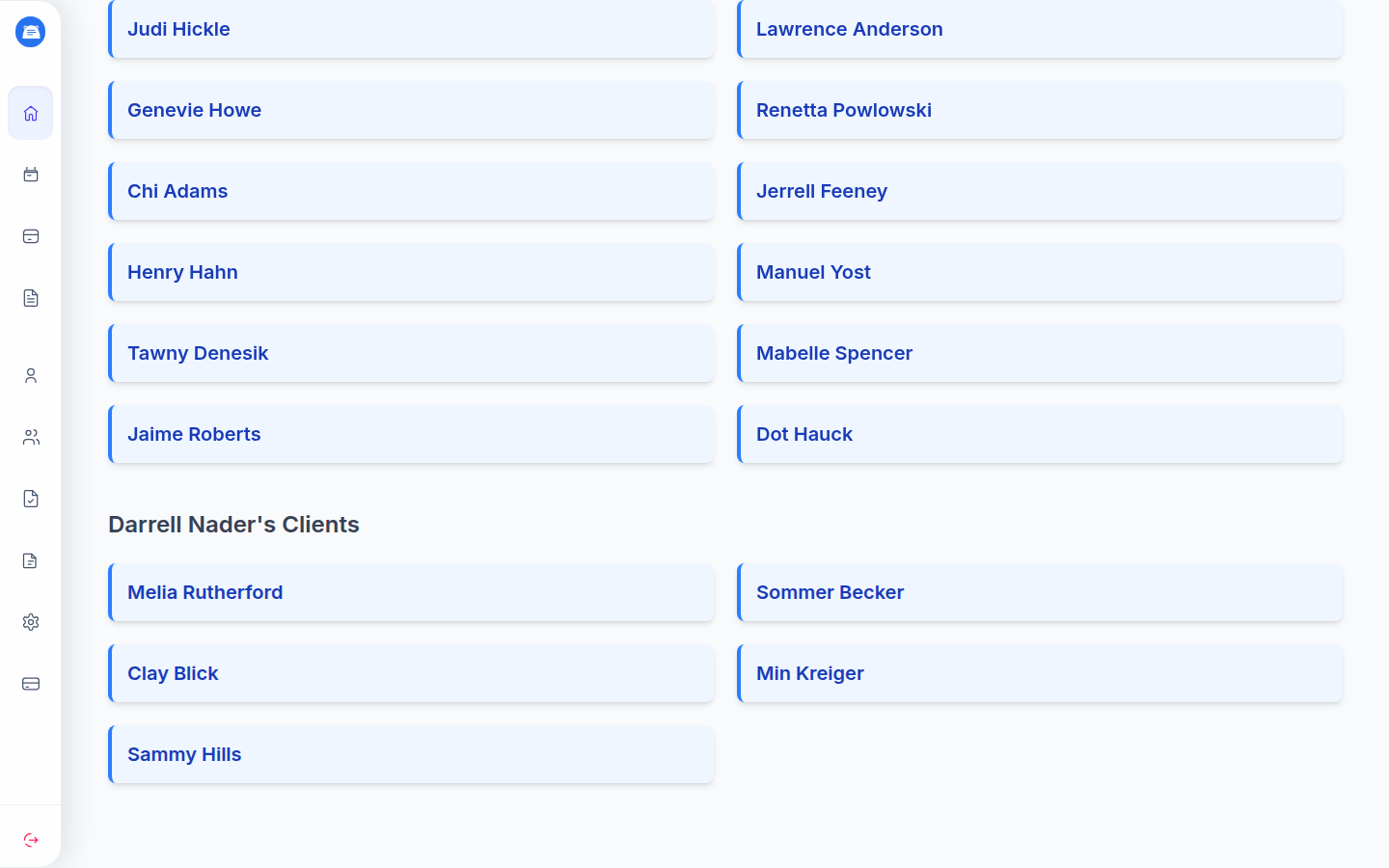
From here you can:
- View any supervisee client’s profile
- Access their notes, treatment plans, and session history
- Review documentation the same way you’d view your own clients
This access is read-and-review only - supervisors review the work their supervisees create rather than creating records directly on supervisee clients.
Note Review Process
The note review system lets supervisees submit notes for supervisor approval, creating a documented chain of review that supports compliance and professional development.
Requesting a Review (For Supervisees)
After writing a note for one of your clients:
- Open the note you want reviewed
- Click Request Review
- The note is submitted to your assigned supervisor
You must have a supervisor assigned to request reviews. If you don’t see the Request Review button, ask your practice admin to assign a supervisor on the Staff page.
Once submitted, the note shows a Pending Review status. You can continue working on other notes while waiting for your supervisor’s response.
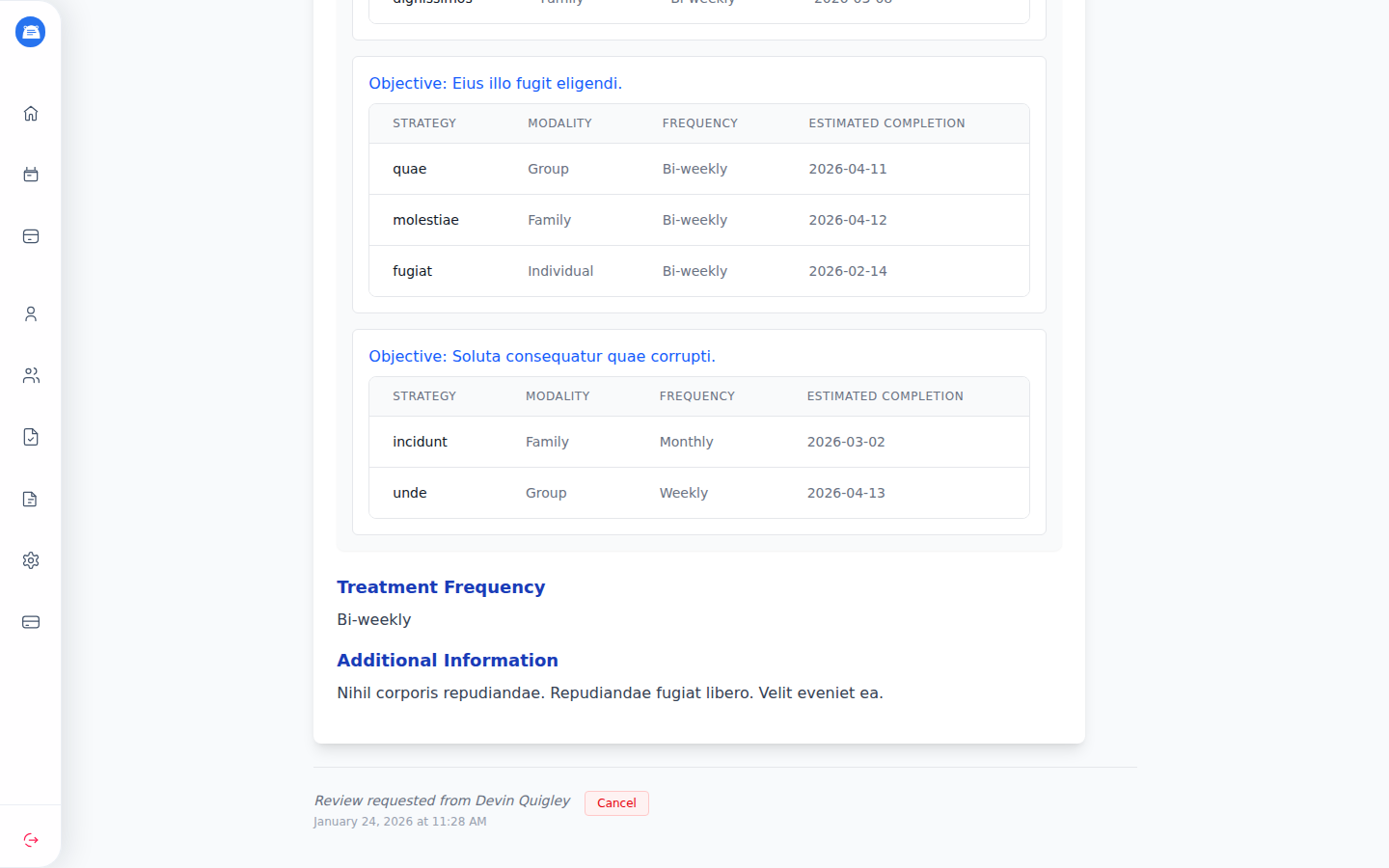
Reviewing Notes (For Supervisors)
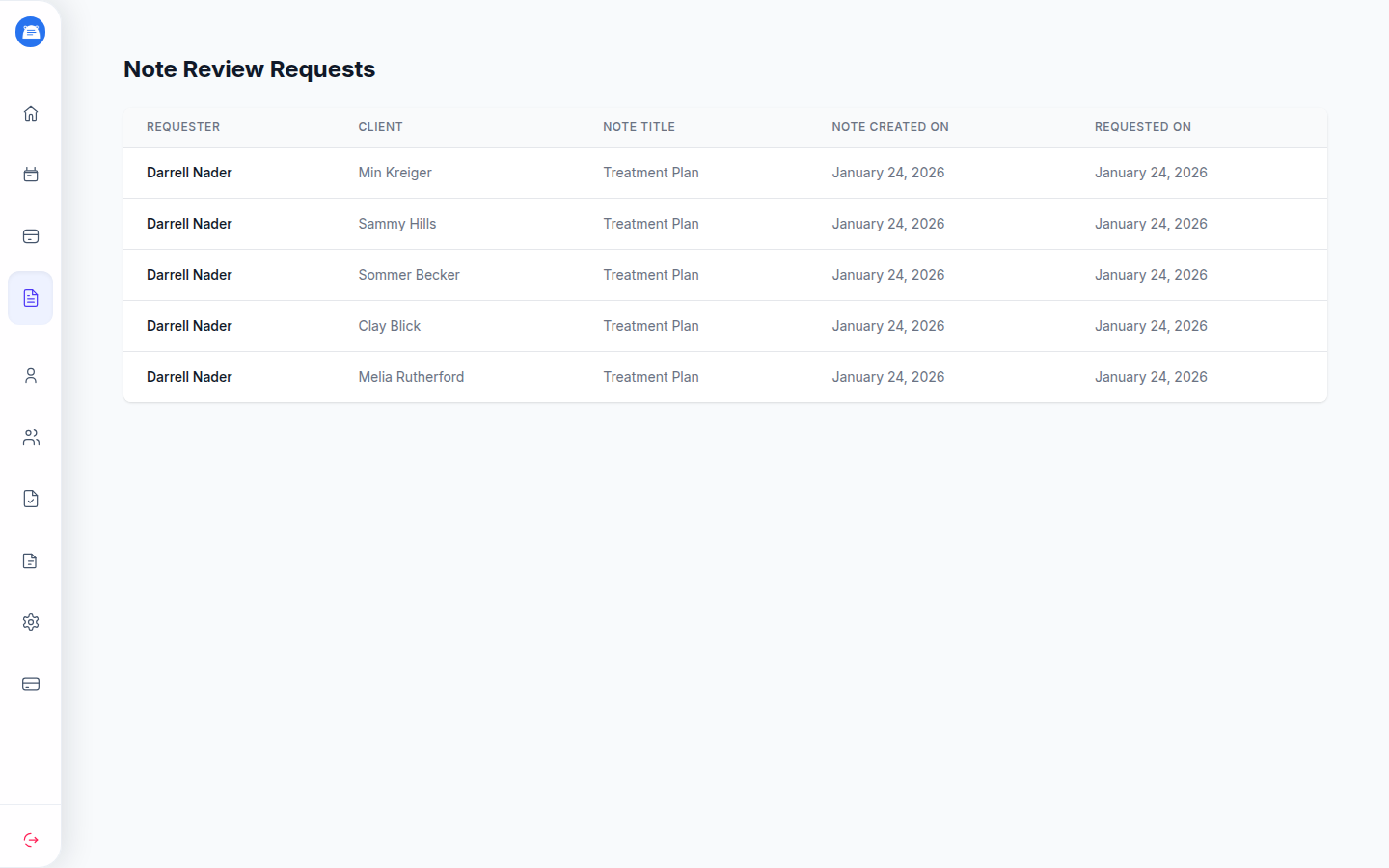
When a supervisee requests a review, it appears in your Review Requests section. This link appears in the main navigation only if you have supervisees assigned to you.
To review a note:
- Click Review Requests in the navigation
- You’ll see a list of all pending review requests from your supervisees, with the most recent first
- Click on a review request to open the note
- Read through the note content
You have two options:
Approve and sign the note:
- Click Approve & Sign
- The note is marked as signed by you
- A signature block appears on the note with your approval
Request changes:
- Click Request Changes
- Add your feedback using the rich text editor - you can include formatting, specific suggestions, or questions
- Click Submit
- The supervisee will see your feedback on the note
Review History
Every review action is permanently recorded on the note. The review history shows:
- Who reviewed the note
- When the review happened
- The decision (signed or changes requested)
- Any comments provided
This creates an audit trail that documents the supervision process for compliance, licensing boards, or insurance requirements. Learn more about how we handle audit logging and compliance on our Trust Center.
Frequently Asked Questions
Can a supervisor edit a supervisee’s notes directly? No. Supervisors review and sign notes or request changes. The supervisee makes any edits themselves based on supervisor feedback.
What happens to review history if a supervisor is removed? Existing review history is preserved. Past reviews and signatures remain attached to the notes even after the supervision relationship ends.
Can a clinician have more than one supervisor? No. Each clinician can have one supervisor at a time. To change supervisors, the admin removes the current assignment and adds the new one.
Who can see the review requests? Only the assigned supervisor sees review requests from their supervisees. Admins manage the supervision assignments but don’t automatically see review requests for other supervisors’ supervisees.
Is supervision included in all plans? Yes. Supervision support is included in both the monthly and annual plans at no additional cost.
Do supervisees need separate accounts? Yes. Each supervisee is a staff member with their own login. The admin invites them to the practice and then assigns their supervisor.