Scheduling
This guide covers how to set up your availability, create bookable events, and manage client sessions.
Setting Up Your Availability
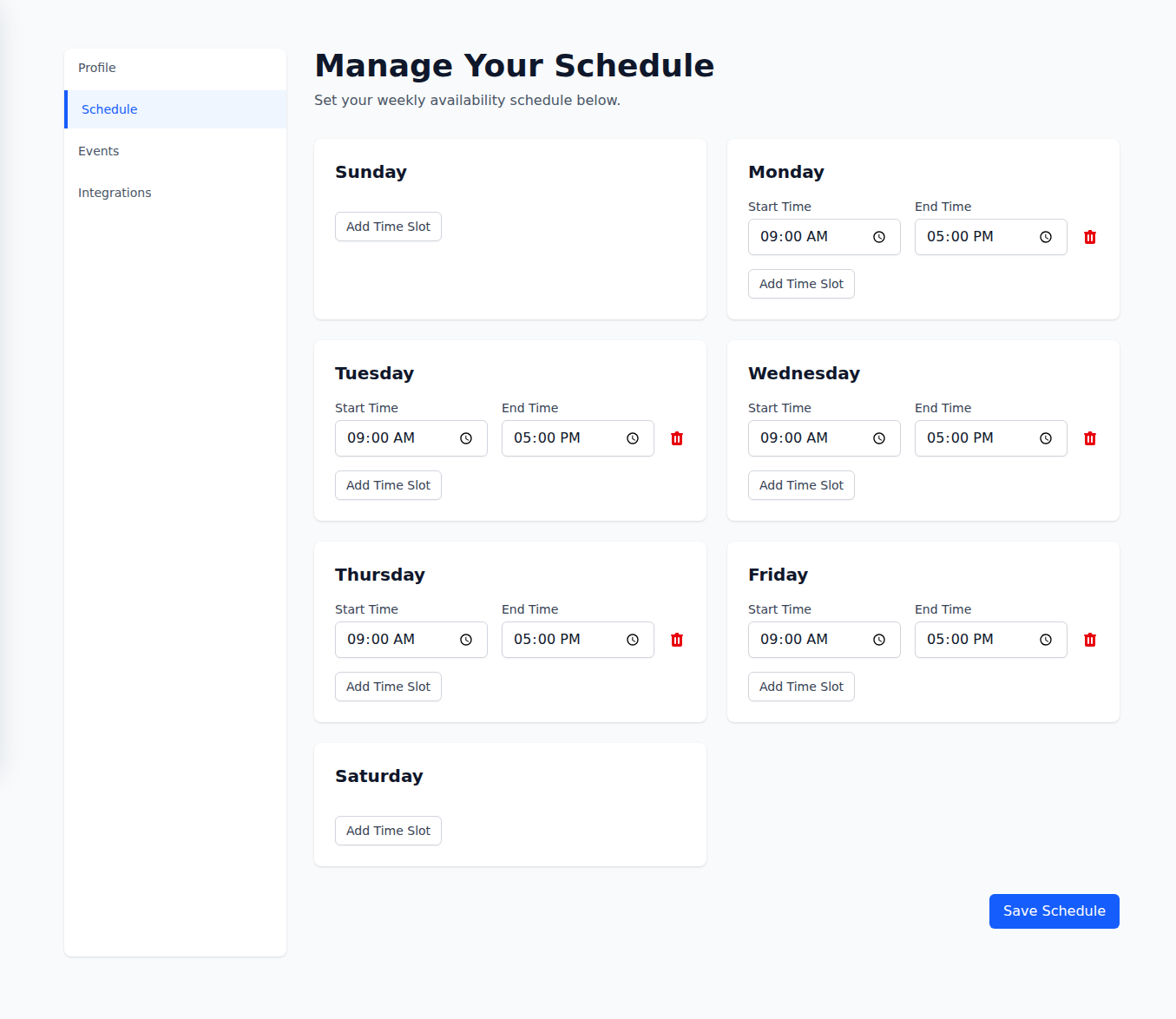
Section titled “Setting Up Your Availability”Your availability defines when clients can book sessions with you. To configure your weekly hours:
- Go to My Profile > Schedule
- Click the + button next to a day to add a time slot
- Set the start and end times for each block (e.g., 9:00 AM - 12:00 PM)
- Add multiple time slots per day if you have breaks (e.g., morning and afternoon blocks)
- Click Save when finished
Most weeks look alike, so you don’t have to re-enter the same hours seven times. Set up one day, click its copy icon, tick the days that share those hours, and hit Apply.
Days without any slots show as Unavailable and won’t offer booking slots.
Tips:
- You can have up to 15 time slots per day
- Remove a slot with the trash icon next to it
- Changes take effect immediately for new bookings
Booking Interval
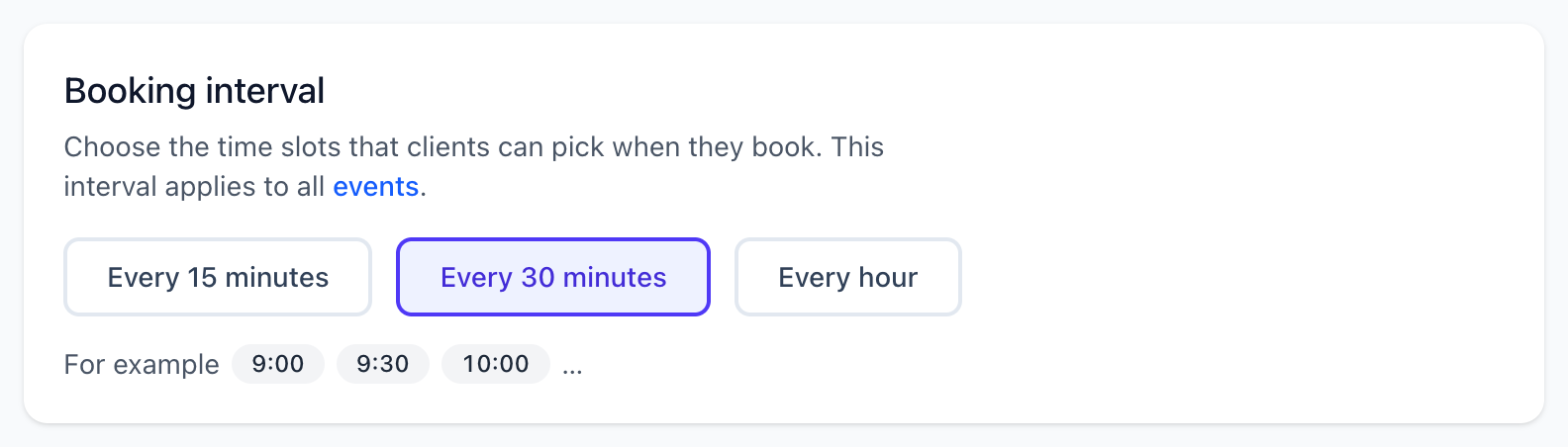
Section titled “Booking Interval”The booking interval controls how often available start times appear on your booking page. Go to My Profile > Schedule and choose 15, 30, or 60 minutes.
Choosing a Time Format
Section titled “Choosing a Time Format”Choose how session times appear for staff and clients from Practice Settings > Time Format: select 12-hour or 24-hour, then click Save Changes.
Creating Bookable Events
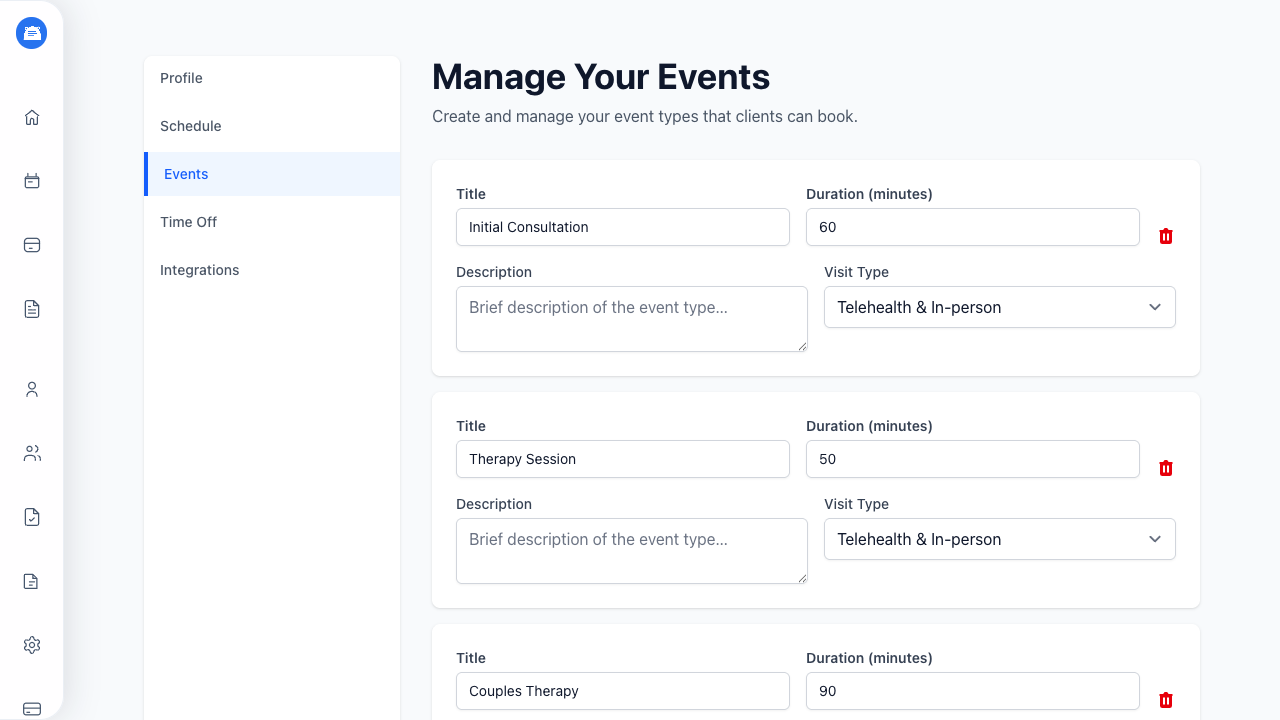
Section titled “Creating Bookable Events”Events are the session types that clients can book (e.g., “Initial Consultation”, “50-Minute Session”). To set up your events:
- Go to My Profile > Events
- Click Add event type and fill in each row:
- Title - What clients will see (e.g., “Therapy Session”)
- Minutes - How long the session runs; pick a common length or type your own
- Visit type - Telehealth, in-person, or both (see Visit Types)
- Description - Optional details about the session
- Click Save when finished
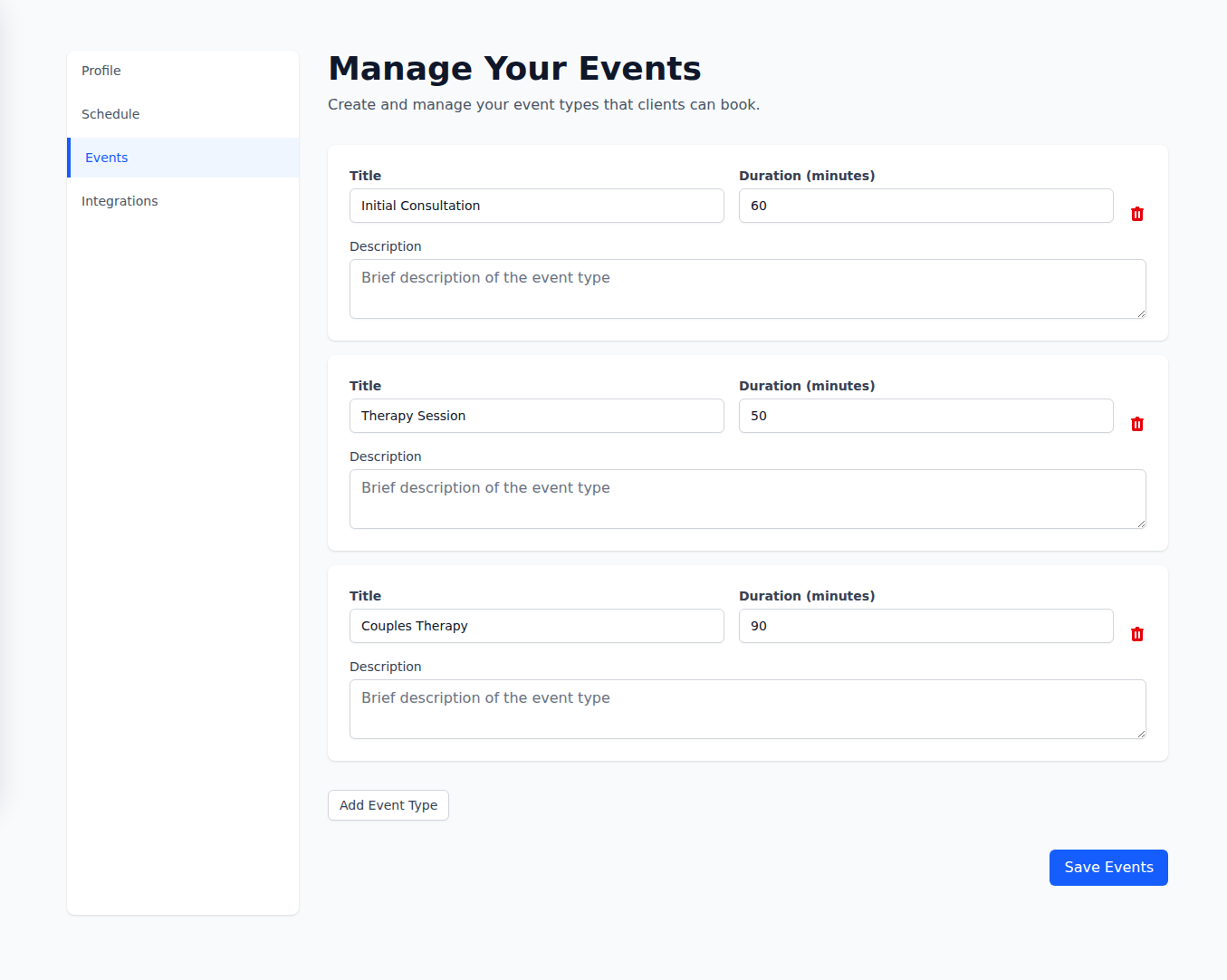
You can create up to 15 different event types. Remove one with the trash icon next to its row.
Your Booking Page
Section titled “Your Booking Page”Each therapist has a public booking page at:
https://app.hipaatherapy.com/book/your-usernameWhen clients visit this page, they can:
- Select their time zone
- Choose an event type
- View a calendar showing your available slots
- Pick a time and confirm their booking
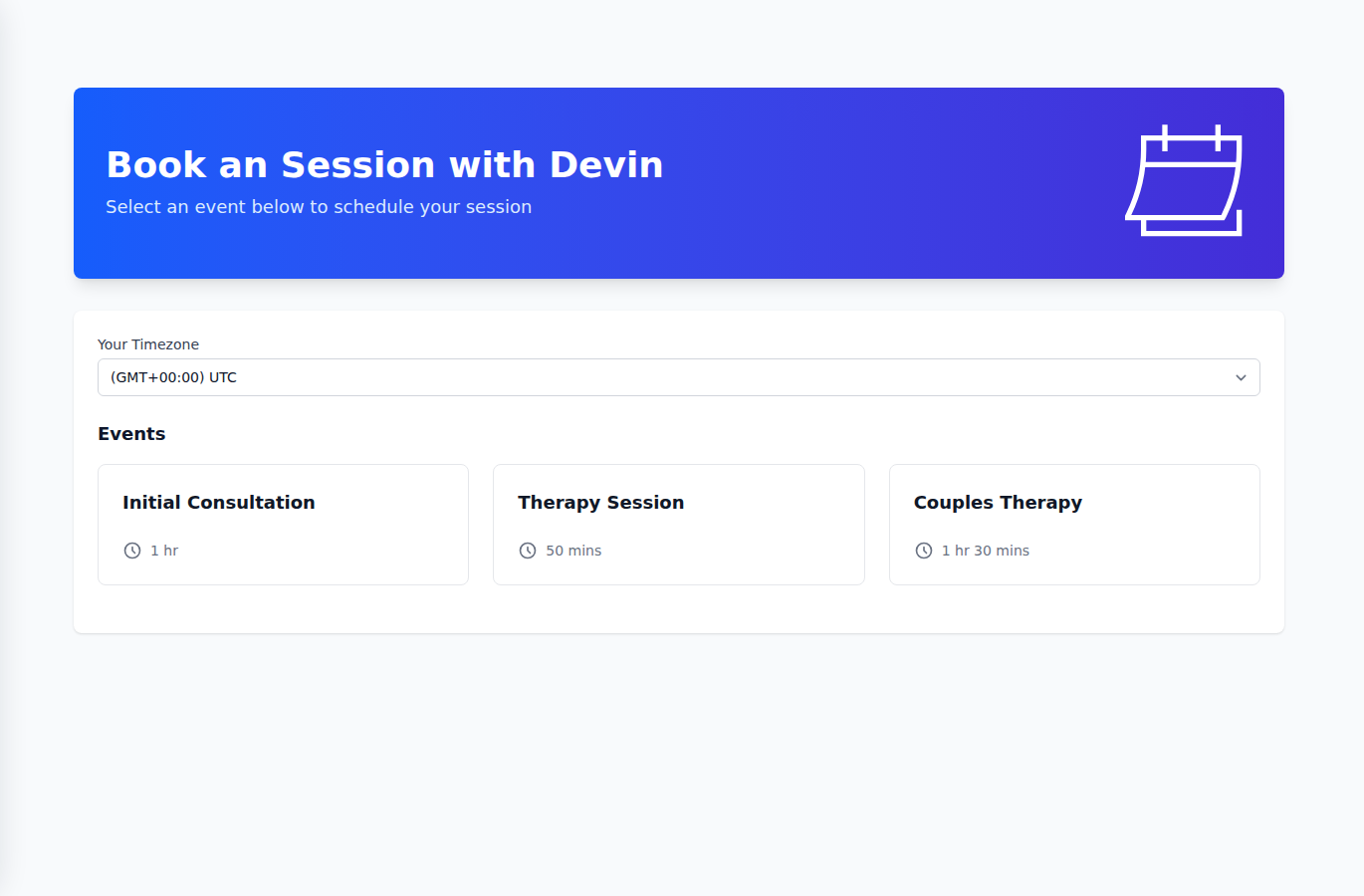
Share this link on your website, email signature, or social media to let clients self-schedule.
New Bookings and Client Intake
Section titled “New Bookings and Client Intake”When someone books through your booking page, they don’t go straight into your active client list. They show up as an intake client in a dedicated “New bookings” section at the top of your Clients page. This gives you a chance to review each booking before deciding what to do with it.
For each intake client, you have three options:
- Accept - Converts them into an active client. They’ll move into your regular client list and you can start scheduling sessions, writing notes, and managing their record.
- Reject - Removes the client and their booked sessions entirely. Use this for bookings you don’t want to take on.
- Merge - Folds the booking into an existing client’s record. This is useful when a returning client books through your public page and creates a duplicate. Select the existing client, and their booked sessions transfer over.
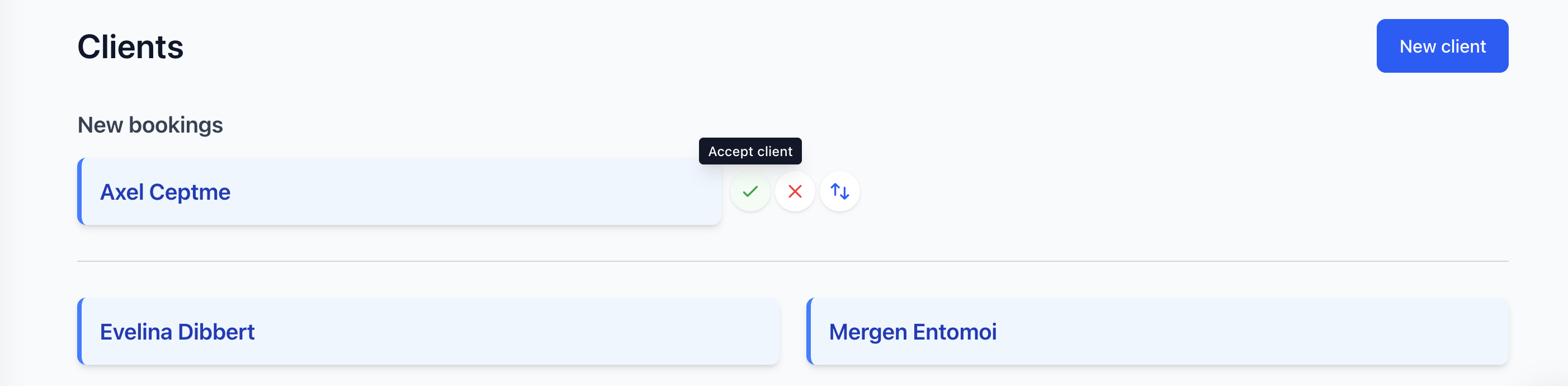
Once you accept or merge a client, they work just like any other client in HIPAAtherapy.
To collect intake paperwork automatically once a booking comes in, see Forms.
Managing Sessions
Section titled “Managing Sessions”Viewing Your Calendar
Section titled “Viewing Your Calendar”Go to Sessions to see your scheduled sessions. Use the Month / Week toggle to switch between a monthly overview and an hour-by-hour week view - the calendar remembers which one you prefer. Click any session to view details including:
- Client name
- Session type and duration
- Start time
- Meeting link
- Payment status
Time off appears in the calendar too.
Rescheduling by Drag and Drop
Section titled “Rescheduling by Drag and Drop”Plans shift. When a session needs to move, drag it to its new spot instead of opening the edit form:
- In week view, drag a session to a different day or time. Drops snap to 15-minute increments, and an indicator shows where the session will land.
- In month view, drag a session to another day. It keeps its original start time.
The calendar confirms the move right away. Cancelled sessions stay where they are - uncancel one first if it needs to move.
Conflict Warnings
Section titled “Conflict Warnings”If two sessions overlap, both are flagged with a warning triangle in the month and week views, so a double-booking stands out before the day arrives. Back-to-back sessions don’t count as a conflict - only actual overlap does.
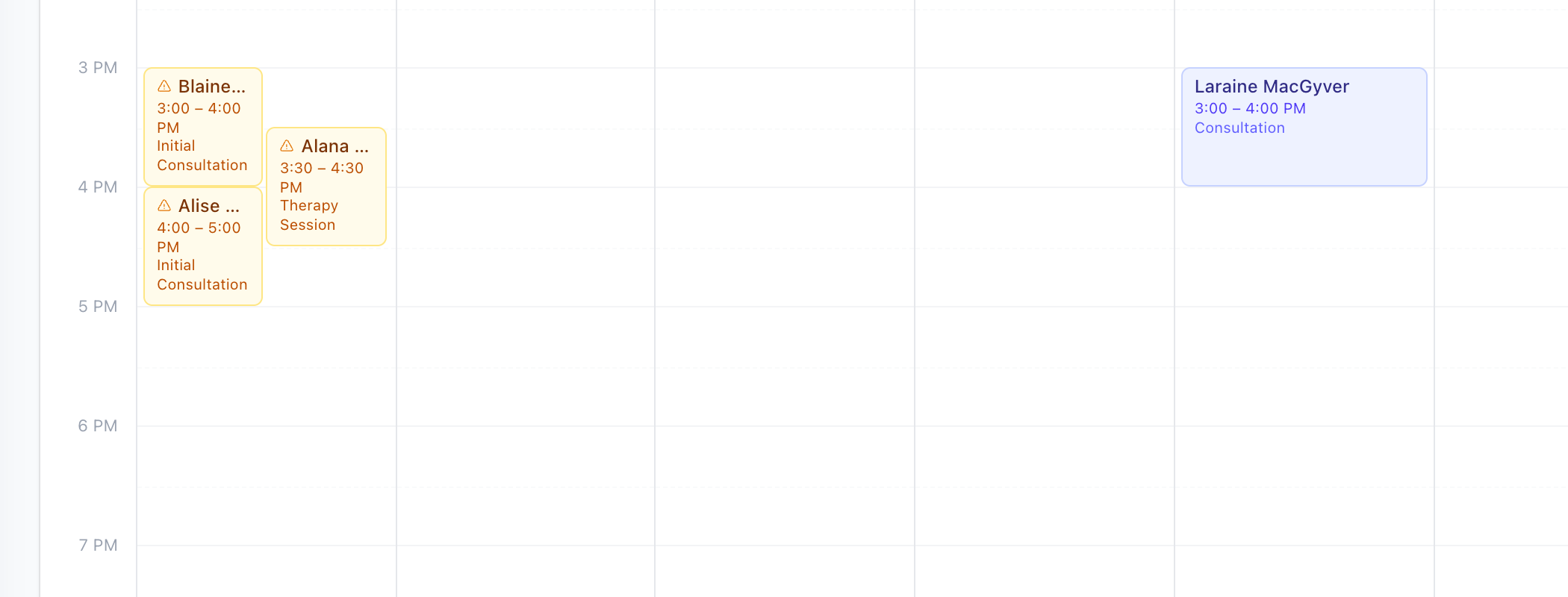
Drag one of the flagged sessions to a free slot, or cancel one, and the warning clears.
Creating Sessions Manually
Section titled “Creating Sessions Manually”To schedule a session for a client:
- Go to the client’s profile
- Click New Session
- Select the session type, date, and time
- Save the session
Seeing a couple, a family, or a group together? Clients attending takes as many people as you need - see Couples, Families & Groups.
Recurring Sessions
Section titled “Recurring Sessions”Most therapy runs on a standing session - same client, same time, week after week. Rather than booking each one by hand, set the session to repeat and HIPAAtherapy fills in the calendar for you.
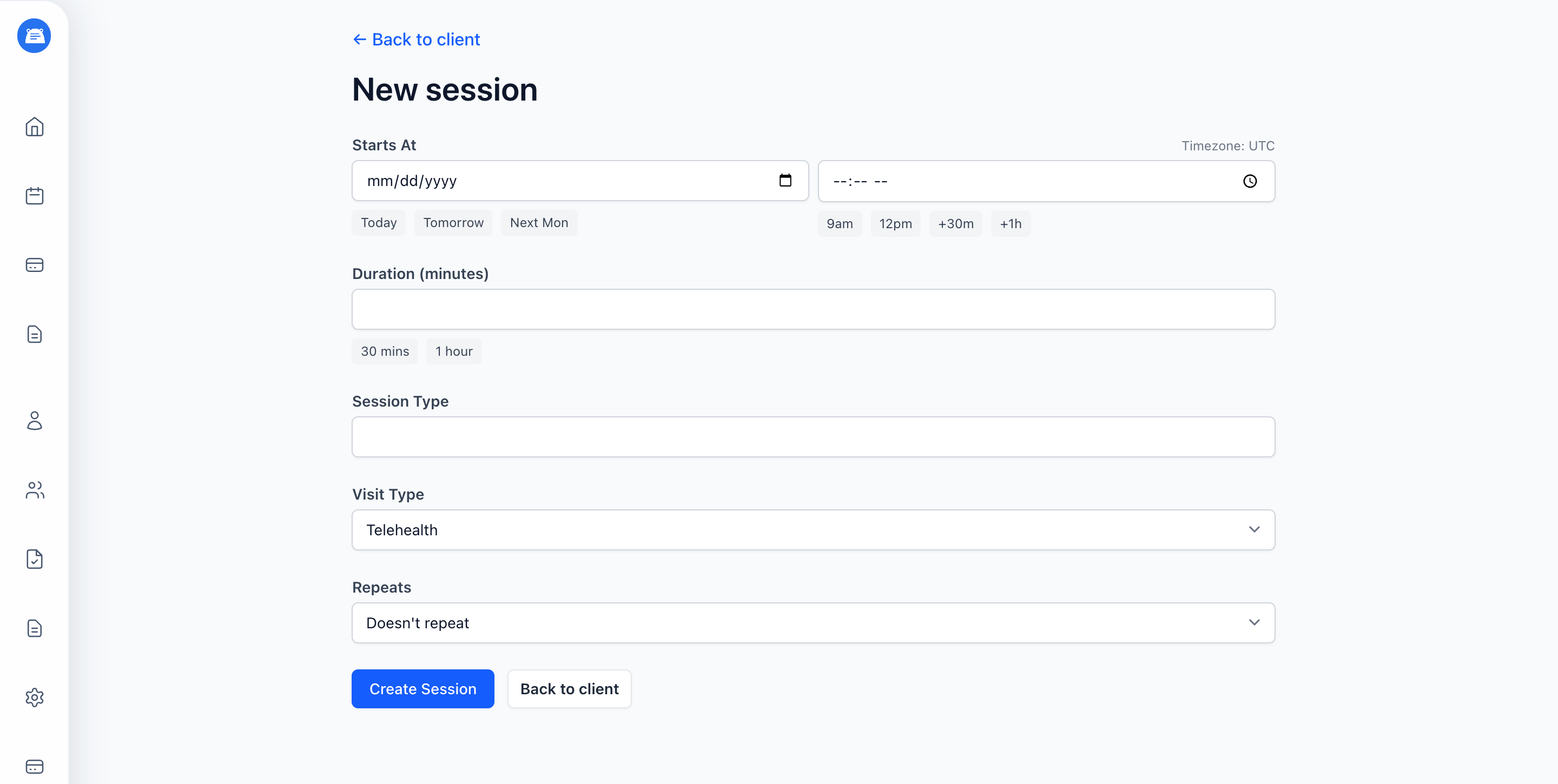
When you create a session, use the Repeats dropdown to choose how often it comes back:
- Doesn’t repeat - a one-off session (the default)
- Every week
- Every 2 weeks
- Every 3 weeks
- Every 4 weeks
The day and time carry over from the session itself, so the cadence is the only thing to pick. Save the session and the rest of the series appears on your calendar, filled in for the next couple of months and extended automatically as time goes on.
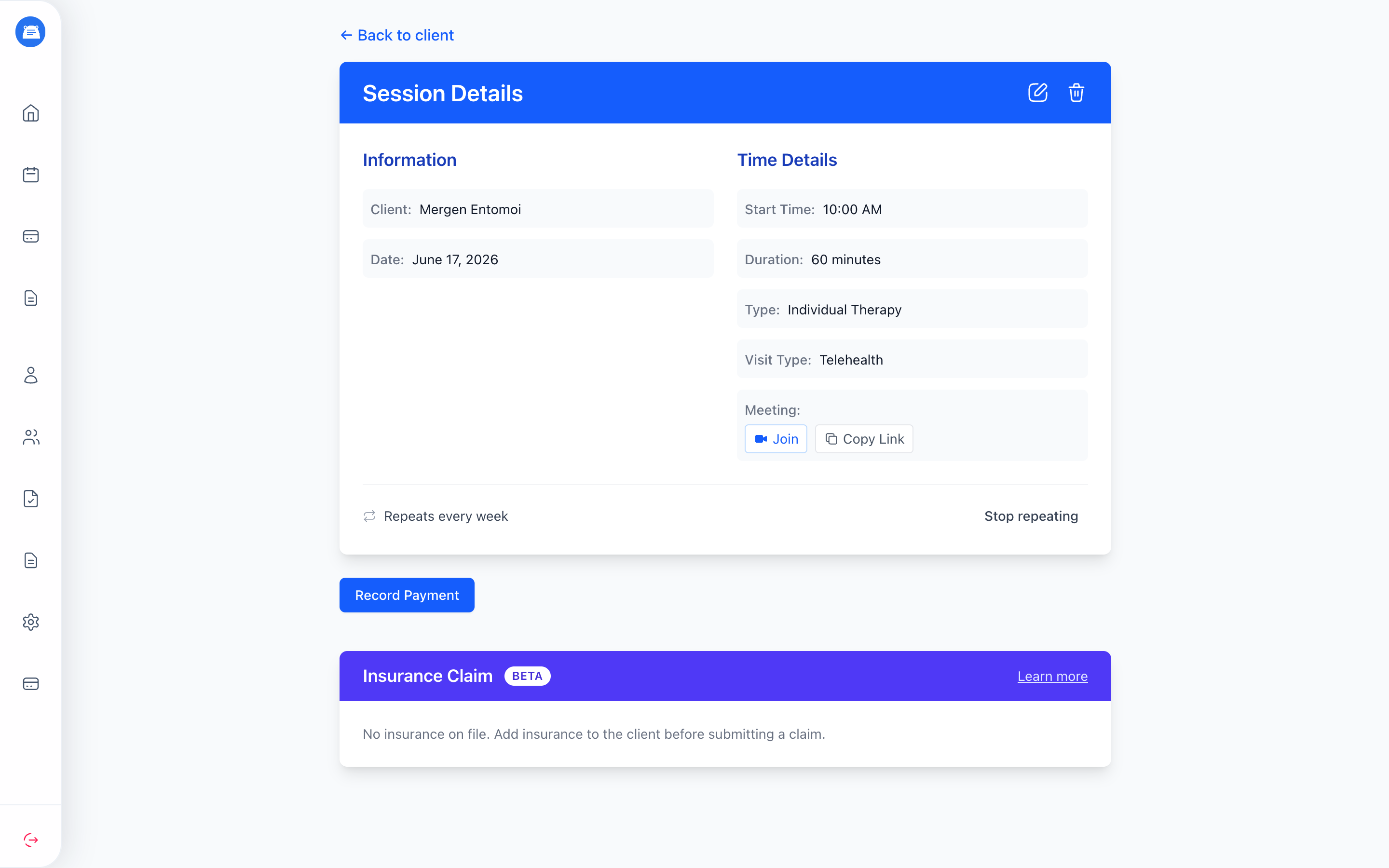
You can also start or stop a series from a session that already exists. Open the session and look for the Repeats control at the bottom of the details:
- Pick a cadence to start repeating from that session forward.
- Click Stop repeating to end the series. Upcoming sessions are removed, while past sessions - and any upcoming ones you’ve already worked on, like a session with a note, a payment, or a claim - stay put.
Recurring sessions are marked with a repeat icon on your calendar, so a standing session is easy to spot at a glance.
Tips:
- A series fills in every slot on its schedule, even one that overlaps a session already on your calendar. HIPAAtherapy won’t block or skip the overlap, so it’s worth a quick glance at your calendar after starting a repeat - if two sessions land on the same slot, reschedule or cancel whichever one needs to move.
- Rescheduling or cancelling one session only affects that one. The rest of the series stays exactly where it is, so you can move a single week without disturbing the others.
- Seeing a client twice a week? Set up two weekly series, one for each day - a Tuesday series and a Friday series together give you two standing sessions.
- No end date to manage. A series runs until you stop it, which matches open-ended treatment, and stopping is one click.
Cancelling Sessions
Section titled “Cancelling Sessions”Cancelling keeps a record of the session - who cancelled it, when, and why - instead of erasing it. The cancel icon sits right next to delete on every session, so you can always cancel instead of deleting outright.
To cancel a session:
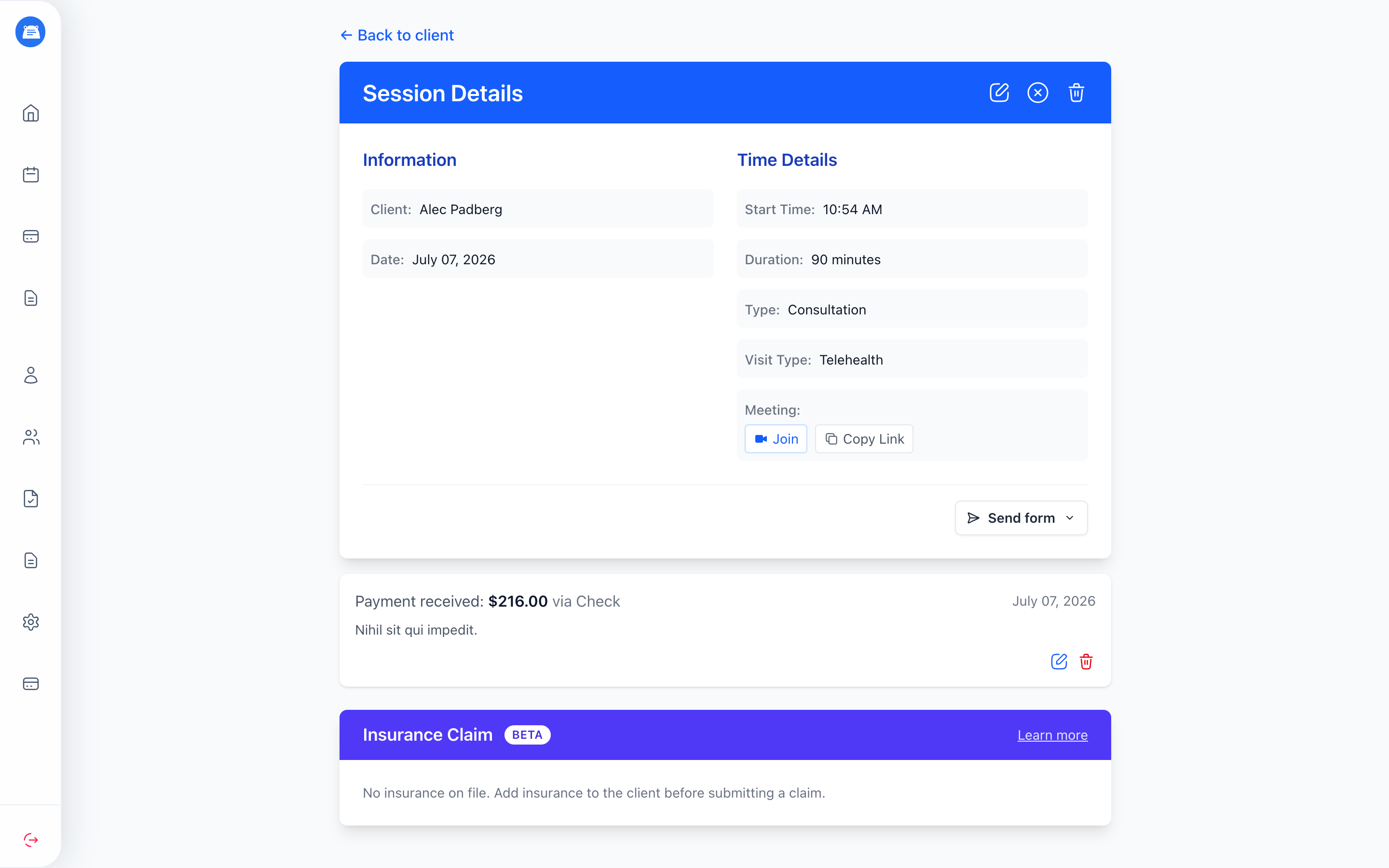
- Open the session details
- Click the cancel icon
- Optionally add a reason
- If the client has portal access, choose whether to notify them by email
Clients without portal access won’t see a notify option, since there’s no portal to send them to.
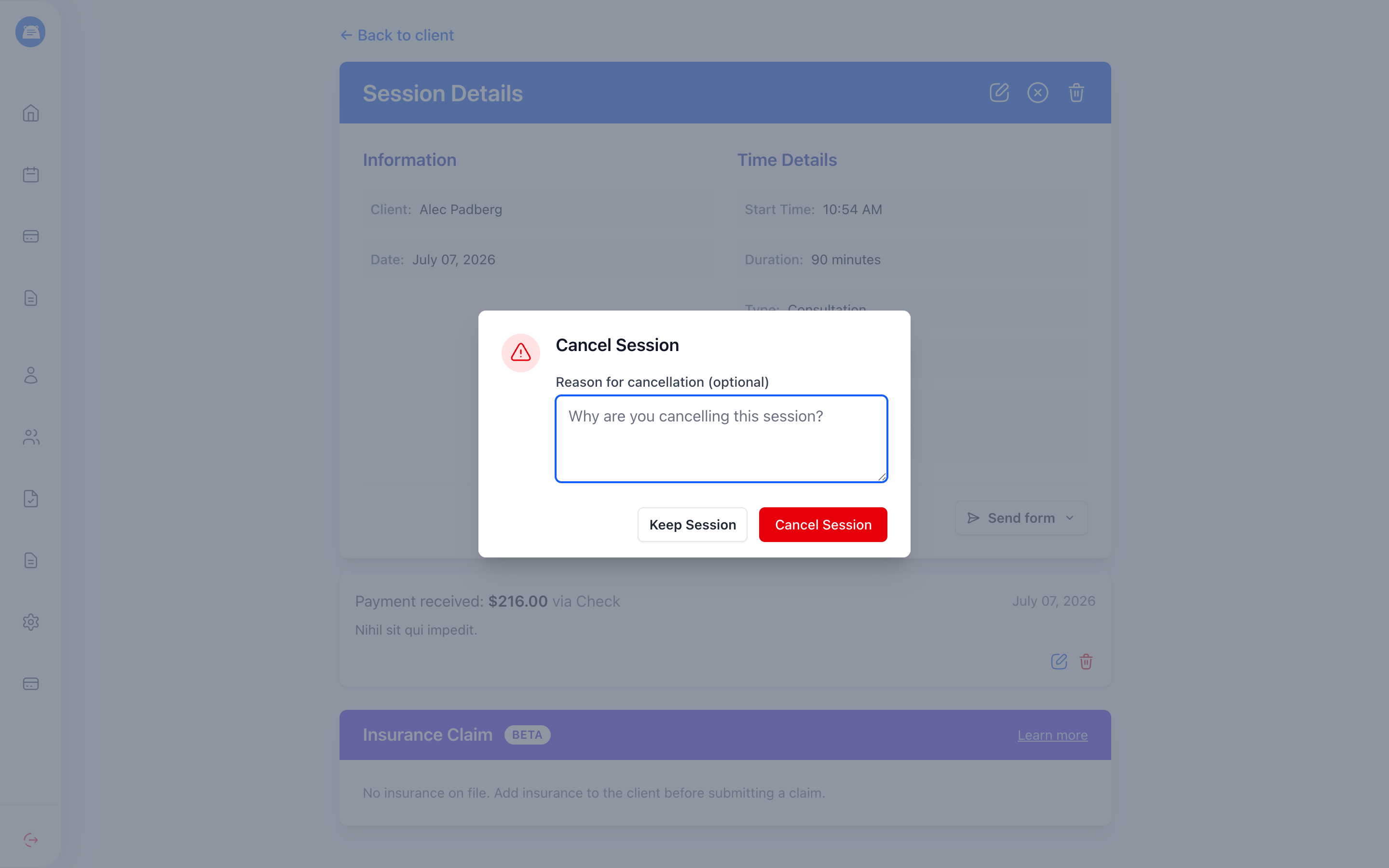
You can cancel a session even after its scheduled time. Use this when you’re updating the calendar after the fact and still want to keep the cancellation record.
Client cancellations:
- Clients can cancel sessions from their portal
- They must cancel at least 24 hours in advance
- You’ll receive an email notification when a client cancels
- On a session with more than one client, they leave the session instead - it stays on the calendar for everyone else, and you’re emailed either way. See Couples, Families & Groups.
Time Off
Section titled “Time Off”Block off dates when you’re unavailable for bookings - vacations, sick days, personal appointments, or anything else. Blocked time automatically removes those slots from your booking page so clients can’t schedule during that period.
Adding Time Off
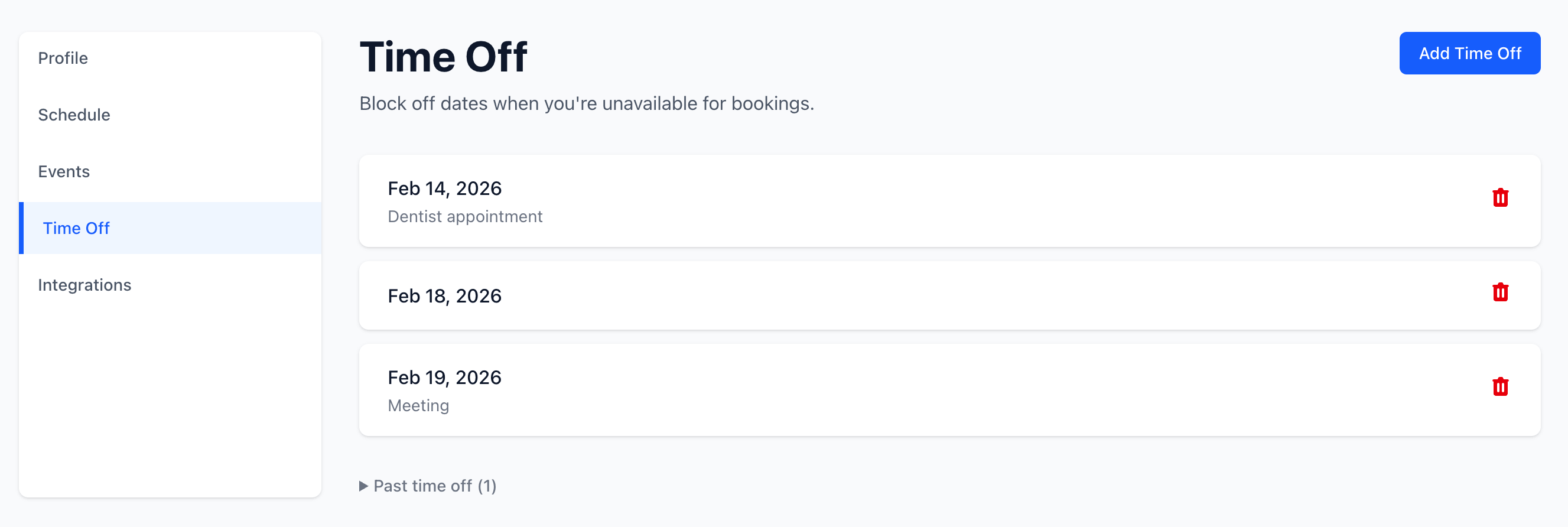
Section titled “Adding Time Off”- Go to My Profile > Time Off
- Click Add Time Off
- Select your start and end dates
- Toggle All day off if you only need to block part of a day, then set start and end times
- Optionally add a reason for your own reference
- Click Save Time Off
Time off applies on top of your regular availability. If you have availability set for Monday 9–5 but add a time off for that Monday, no slots will appear on your booking page for that day.
Removing Time Off
Section titled “Removing Time Off”To remove a time off entry, go to My Profile > Time Off and click the delete icon next to the entry. The blocked slots will immediately become bookable again.
Session Reminders
Section titled “Session Reminders”Email session reminders go out automatically to clients with portal access. Turn the feature on once, and HIPAAtherapy handles the rest.
Turning on reminders
Section titled “Turning on reminders”- Go to Practice Settings
- Find the Reminders section and flip the toggle on
- Pick a lead time - 15, 30, or 45 minutes before the session starts
- Optionally check Also send a reminder 24 hours before for a second, day-ahead reminder
- Click Save Changes

Who gets reminders
Section titled “Who gets reminders”Reminders only go to clients who have accepted a client portal invite. Clients without portal access don’t receive them, since the reminder links them back to the portal for session details.
Cancelled sessions don’t trigger reminders, and nobody gets the same reminder twice. When several clients are on a session, every portal account among them gets one.
What clients see
Section titled “What clients see”Clients receive a short email with a button that takes them straight to their portal, where they can see the session time and join the meeting. Every reminder includes an unsubscribe link - if a client opts out, they stop receiving reminders for all future sessions.

Visit Types
Section titled “Visit Types”Sessions can be telehealth or in-person. You control which options are available per event type, and clients choose when they book.
Setting the visit type on events
Section titled “Setting the visit type on events”Each event type has a Visit Type dropdown with three options:
- Telehealth & In-person - Clients choose how they want to meet when booking
- Telehealth Only - All bookings for this event are video sessions
- In-person Only - All bookings for this event are at your office
To set it, go to My Profile > Events and pick the option that fits each event type.
Office address
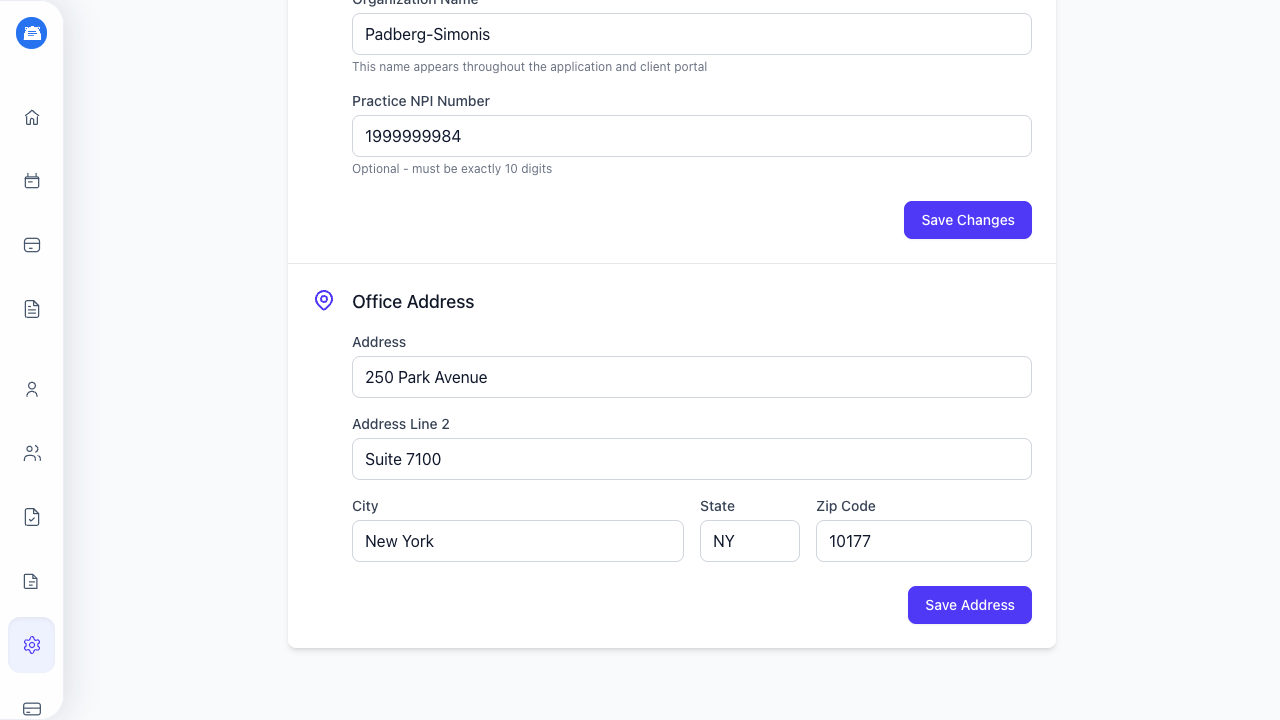
Section titled “Office address”If any of your events allow in-person visits, you’ll want to add your office address so clients can see where to go. Head to Practice Settings > Office Address and fill in your street address, city, state, and zip code. This address shows up on your booking page when a client selects an in-person visit.
How clients see it
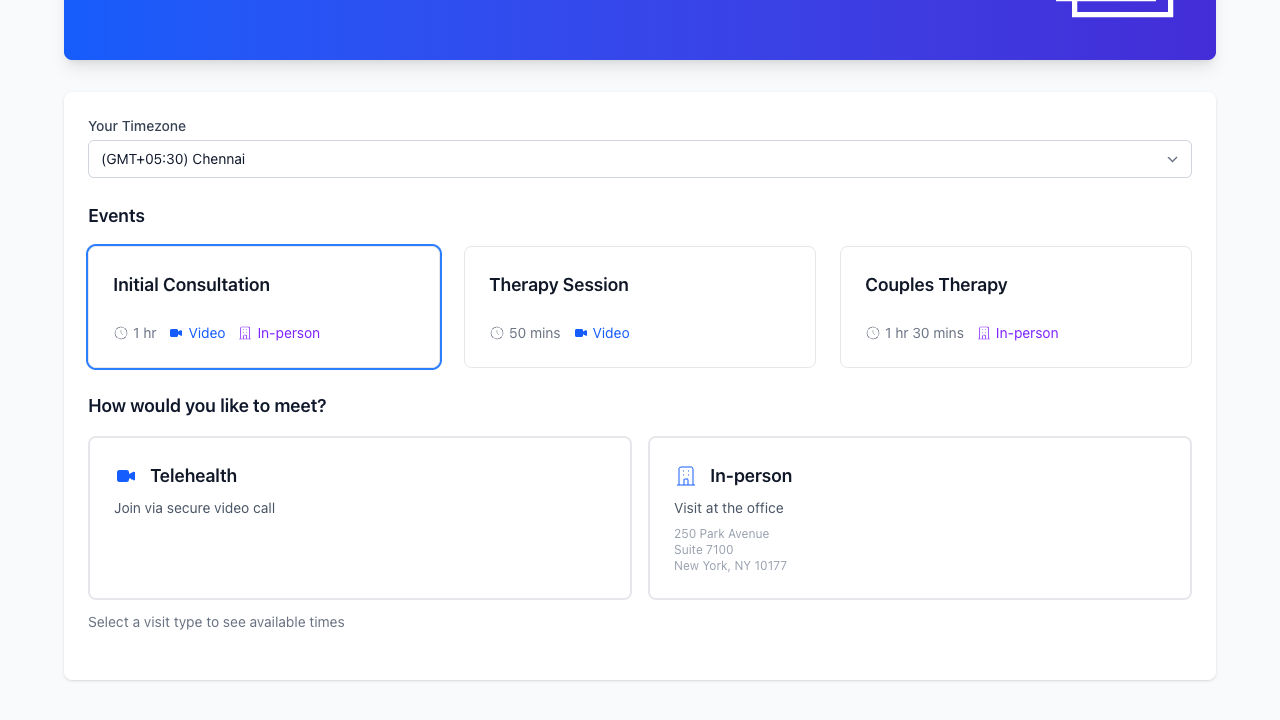
Section titled “How clients see it”When a client picks an event that allows both visit types, they’ll see two cards: one for telehealth and one for in-person. They choose before selecting a time slot. If the event only allows one type, the booking skips this step entirely.
Switching visit types after booking
Section titled “Switching visit types after booking”Things come up. A client who booked in-person might need to switch to video, or the other way around. You can change the visit type from the session edit page at any time.
Video Meetings
Section titled “Video Meetings”Each session automatically gets a video meeting room. The meeting link appears on:
- The session details page
- Confirmation emails sent to you and the client
Clients can join meetings from their client portal.
Meeting Lobby
Section titled “Meeting Lobby”Clients can wait in a lobby until you’re ready to let them in. Go to My Profile > Meeting lobby and turn it on. You’ll join directly; clients need your approval to enter, even if you’re already in the meeting.
The lobby is off by default. Changes apply when a new meeting starts.
Calendar Sync
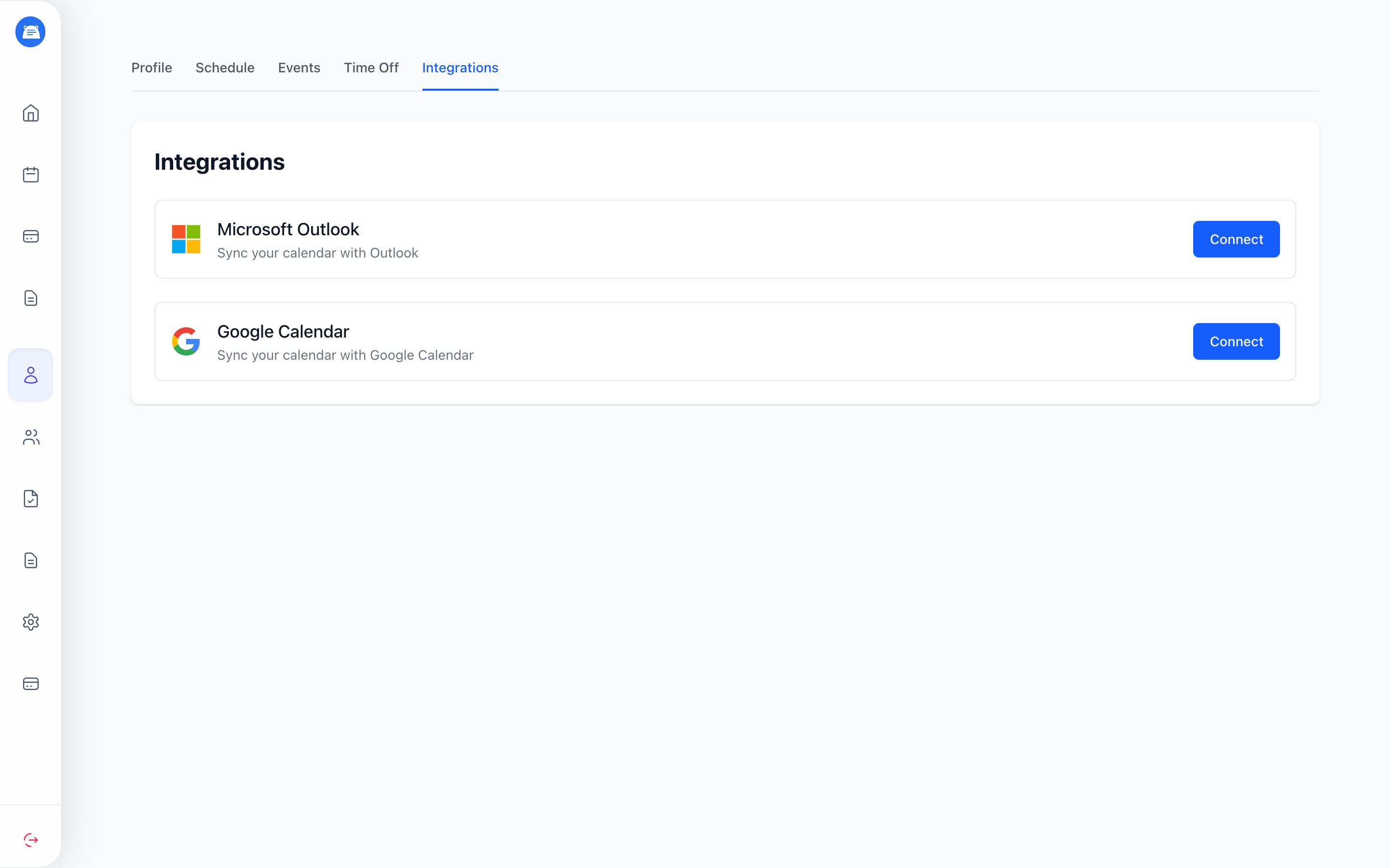
Section titled “Calendar Sync”Keep your HIPAAtherapy sessions alongside the rest of your day by connecting Google Calendar or Microsoft Outlook. You can connect one calendar at a time.
- Go to My Profile > Integrations
- Find Google Calendar or Microsoft Outlook
- Click Connect
- Sign in and allow calendar access
Once connected:
- New sessions appear on your connected calendar
- Changes you make in HIPAAtherapy to the session time, length, or type sync automatically
- With Google Calendar, changing the time or length of a linked event updates the session in HIPAAtherapy
- Deleting an upcoming linked event from Google Calendar cancels the session in HIPAAtherapy. Deleting a past event won’t cancel it in HIPAAtherapy
- Sessions you cancel or delete in HIPAAtherapy are removed from your connected calendar
To switch calendars, return to My Profile > Integrations, disconnect the current calendar with the trash icon beside its Connected badge, then connect the other one.
Email Notifications
Section titled “Email Notifications”HIPAAtherapy sends automatic emails for:
| Event | You Receive | Client Receives |
|---|---|---|
| New booking | Yes | Yes (booking page only) |
| You cancel | - | Yes (optional) |
| Client cancels | Yes | - |
| Client leaves | Yes | - |
| Session reminder | - | Yes (if enabled, portal) |
A booking confirmation goes to the client who booked, and only for bookings made through your booking page - a session you schedule yourself doesn’t send one. Cancellation notices and reminders go to every portal account on the session, so a couple or a group hears at the same time.
Frequently Asked Questions
Section titled “Frequently Asked Questions”How far in advance can clients book? Clients can book any available slot from the current week onward. Same-day bookings require at least 30 minutes notice.
What if a client books during a time I’m already scheduled? HIPAAtherapy prevents double-booking. Clients only see slots where you’re available AND don’t have existing sessions.
Can clients reschedule? Clients can cancel and rebook. Direct rescheduling requires them to cancel the original session first.
How do I block off time for vacation? Go to My Profile > Time Off and add the dates you’ll be away. Those slots will automatically disappear from your booking page. Existing bookings won’t be affected - you’ll need to cancel those individually.
What time zone are sessions displayed in? Sessions display in your account time zone. Clients see times converted to their selected time zone when booking.