Payments
Get paid without chasing invoices. Charge a client’s card once the session is done, send a payment link they can pay in a tap, or jot down a cash or check payment for your records. This guide covers connecting Stripe and every way to take a payment.
Connect Stripe First
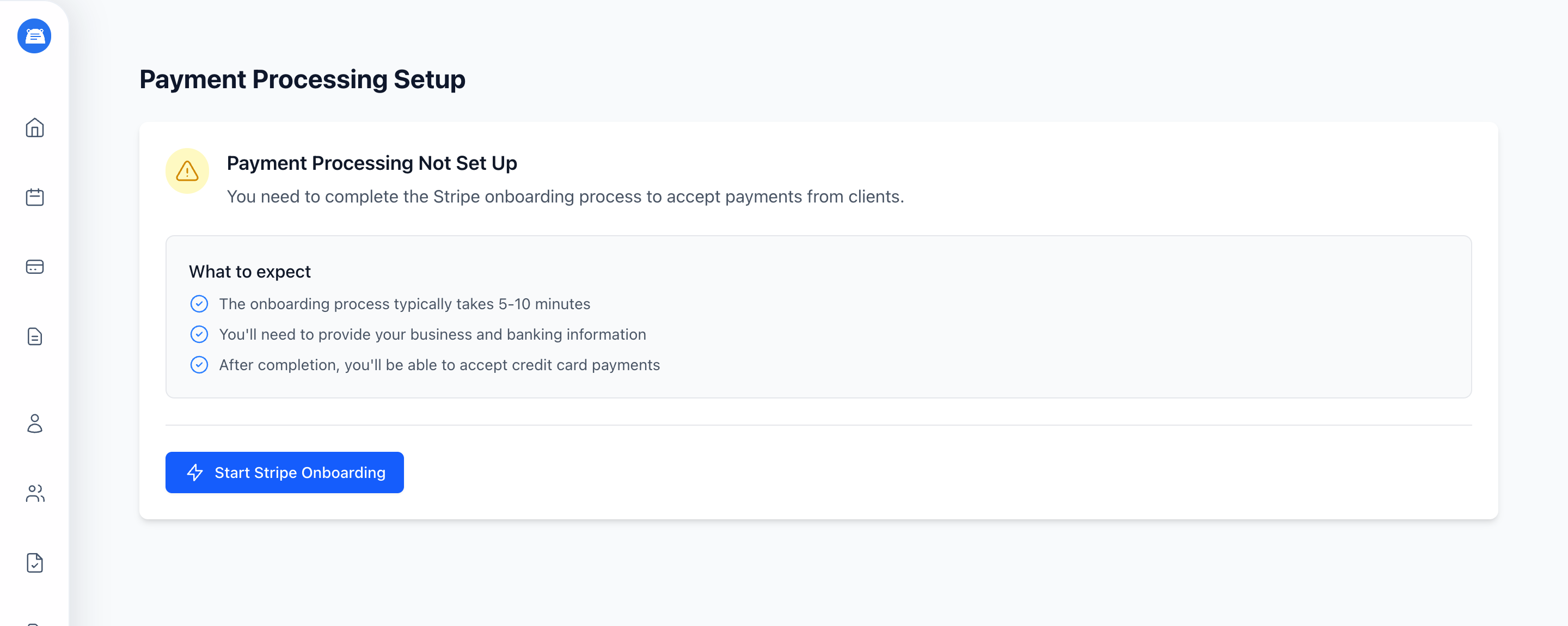
Section titled “Connect Stripe First”To accept card payments, connect your practice to Stripe. Stripe handles the card processing and pays out to your bank account, so you never touch raw card numbers.
- In the sidebar, go to Payment Setup (under the Account section)
- Click Start Stripe Onboarding
- Complete Stripe’s hosted setup - it takes about 5-10 minutes and asks for your business and banking details
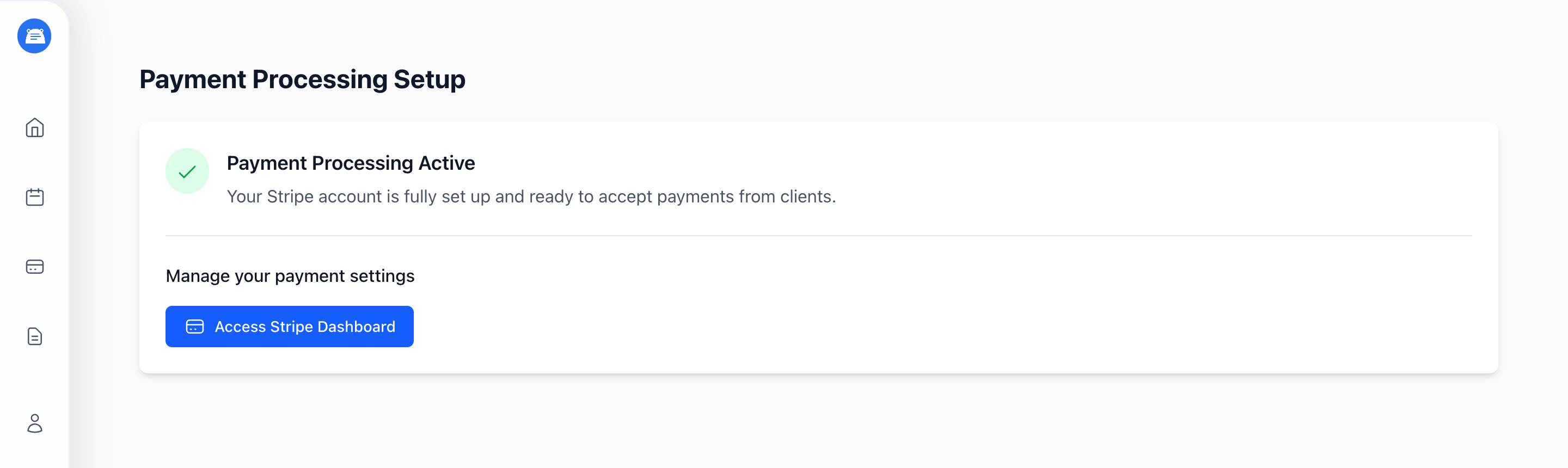
When Stripe has everything it needs, the page switches to Payment Processing Active. From here you can open Access Stripe Dashboard any time to see payouts, update your bank account, or review transactions.
You don’t need Stripe to log a cash or check payment - Record Payment works on its own. You do need it connected for card charges, payment links, and saved cards.
Already finished Stripe’s steps but still see “Not Set Up”? Give it a minute and refresh - Stripe tells us the moment your account is ready. If it sticks for more than a few minutes, reach out and we’ll sort it.
Ways to Get Paid
Section titled “Ways to Get Paid”You’ve got three options, and they live right on the session:
- Charge a card on file - charge the client’s saved card from the session
- Send a payment link - share a secure link the client pays themselves
- Record a payment manually - for cash, check, or anything taken elsewhere
Open a session from your calendar or a client’s chart, and look for the payment buttons below the session details.
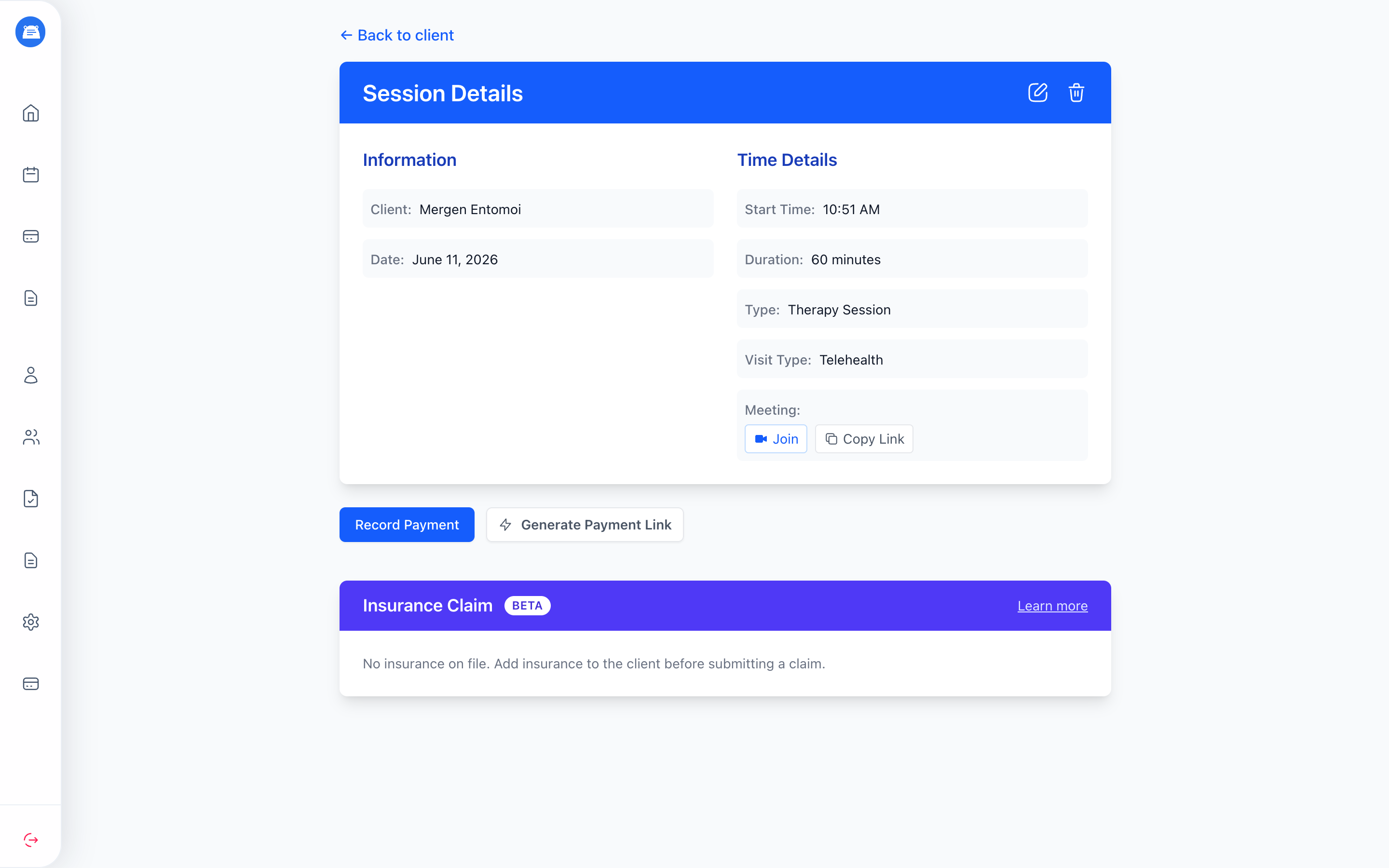
These buttons show on any unpaid, active session: Record Payment is always available, Generate Payment Link appears once Stripe is connected, and Charge Card appears once the client has a card on file. Once a payment is recorded, this area shows that payment instead; a cancelled session shows no payment buttons.
When more than one client is attending, each of them can be charged, sent a link, or recorded on their own. Bill one of them or all of them - see Couples, Families & Groups.
Charge a Card on File
Section titled “Charge a Card on File”Once a client has saved a card (see Let Clients Save a Card), a green Charge Card button appears on the session. Click it, enter the amount, and confirm. The card is charged right away - handy for no-shows or wrapping up after a session without asking the client to do anything.
The payment is recorded against the session automatically, so there’s nothing else to enter.
Send a Payment Link
Section titled “Send a Payment Link”Click Generate Payment Link, type the amount, and hit Copy Link. Share that link with your client however you like - text, email, your own message. They pay through a secure Stripe checkout page, and the payment shows up on the session on its own once it goes through.
This is the quickest way to collect from a client who hasn’t saved a card.
Record a Payment Manually
Section titled “Record a Payment Manually”For cash, a check, a bank transfer, or a card you ran somewhere else, record it yourself so your books stay complete. Use Record Payment on a session, or New Payment from the Payments page if it isn’t tied to one.
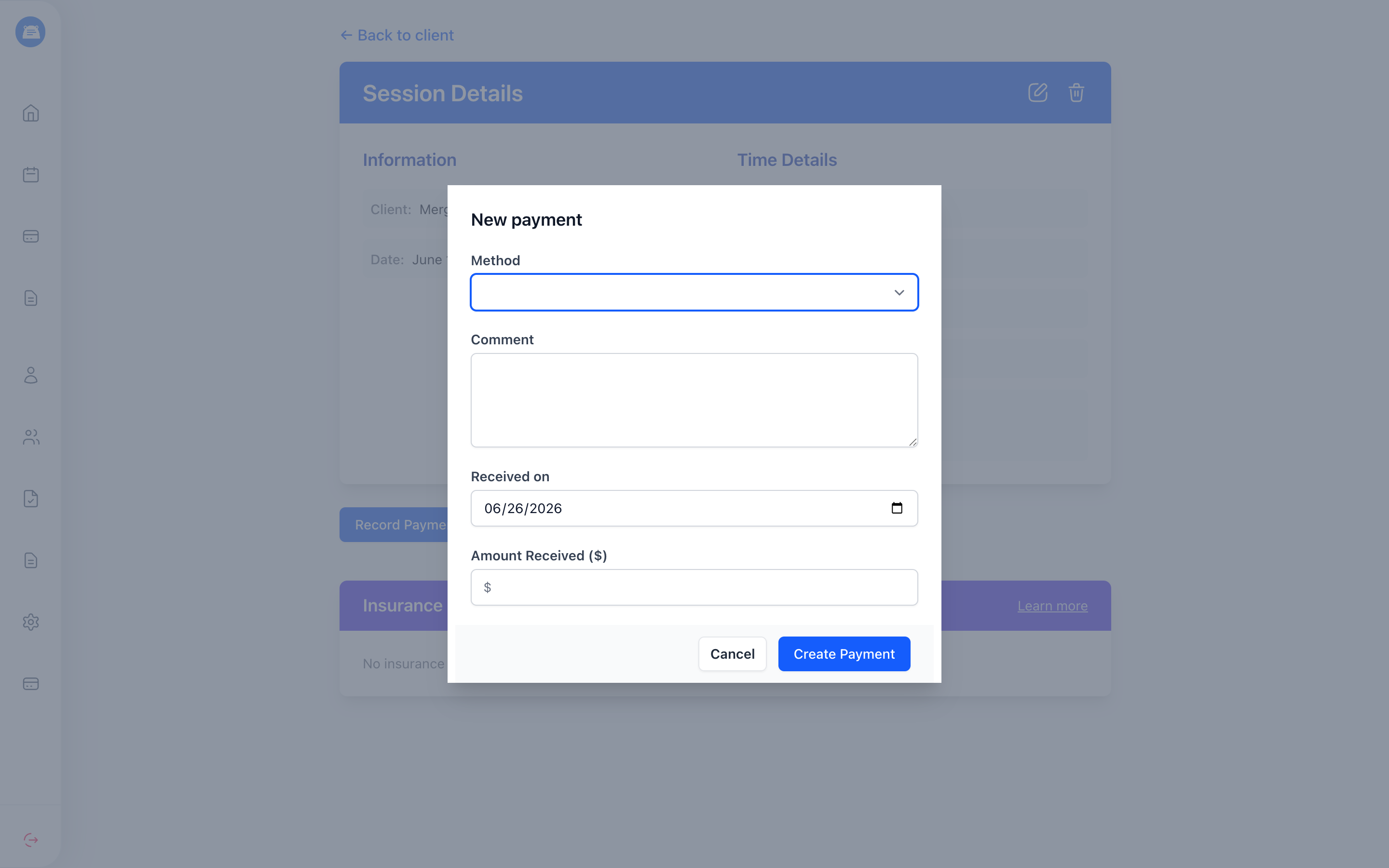
Fill in:
- Method - Cash, Check, Credit Card, Bank Transfer, Stripe, or Other
- Received on - defaults to today
- Amount Received
- Comment - optional note for yourself
- Client - only asked when the payment isn’t already attached to a session
Let Clients Save a Card
Section titled “Let Clients Save a Card”When a client keeps a card on file, you can charge it from any session without asking them to do anything. Clients add their own card from the client portal, so you never handle the details.
From their portal, the client opens Billing, clicks Add Your First Card, then Continue to Secure Payment Form to enter the card with Stripe.
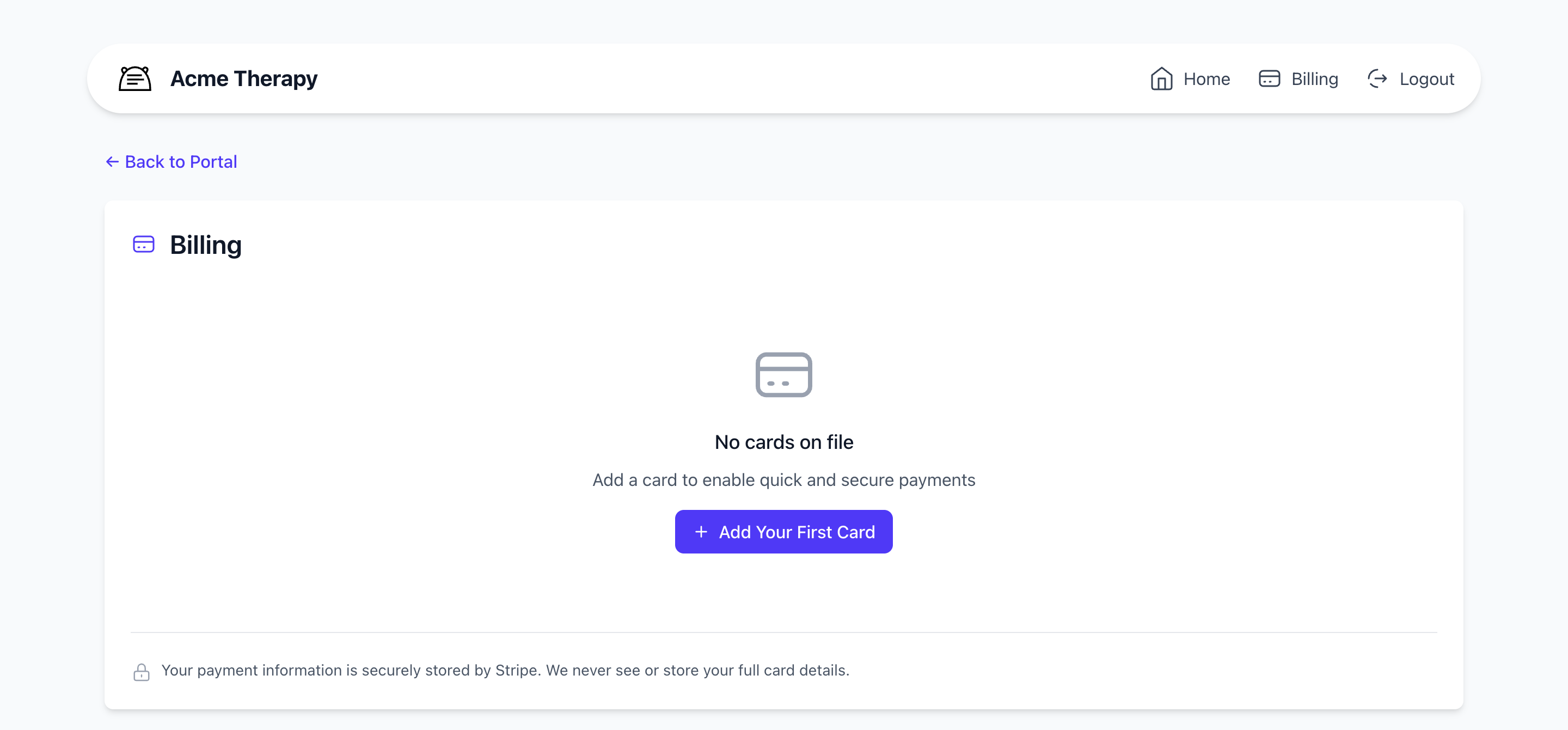
A few things worth knowing:
- The Billing link only appears in the client’s portal once you’ve connected Stripe.
- A client keeps one card on file at a time. To switch cards, they remove the current one and add the new one.
- Card details are stored by Stripe. Neither you nor we ever see or store the full card number.
Once the card is saved, head to any of that client’s sessions and use Charge Card.
Track Your Payments
Section titled “Track Your Payments”The Payments page (sidebar → Payments) gathers every payment you’ve taken in - cash, card, or insurance - totaled by month, and you can look back at any past month.
See where the revenue came from
Section titled “See where the revenue came from”For admins, the month breaks down by therapist and payment method: who brought in what, and how clients paid.
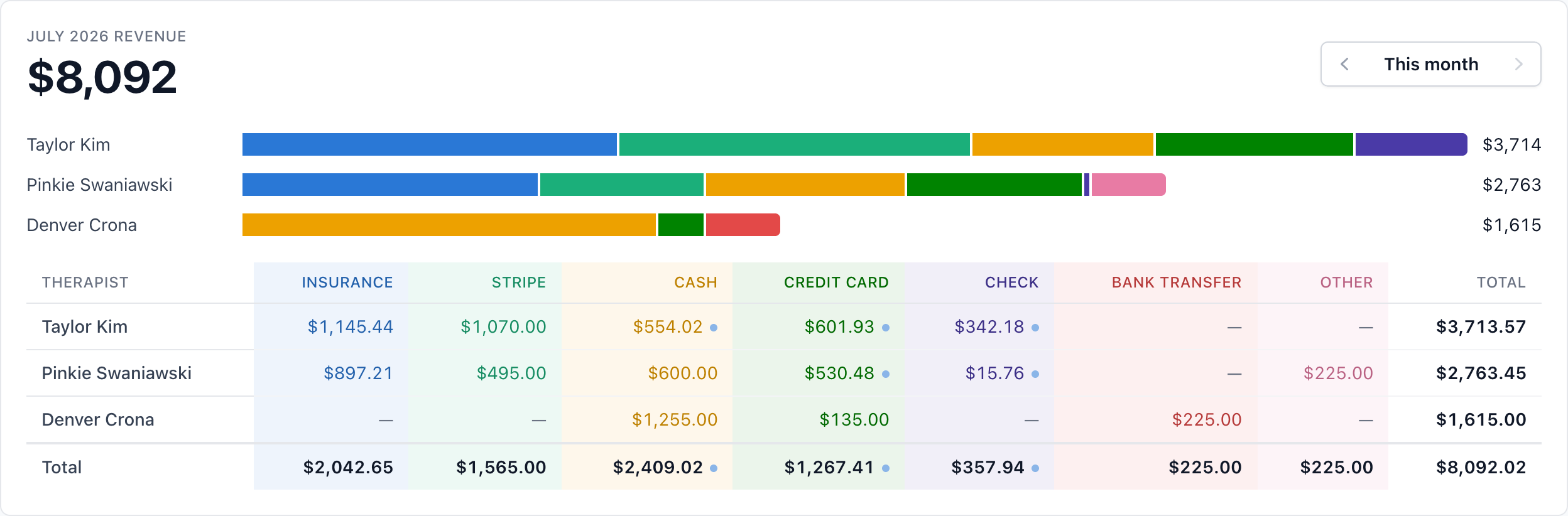
Copays are flagged with a dot - a client’s share of a session insurance also paid for, so it isn’t mistaken for a full self-pay charge.
Clinicians see the practice total and their own contribution, not each colleague’s numbers.
The payment list
Section titled “The payment list”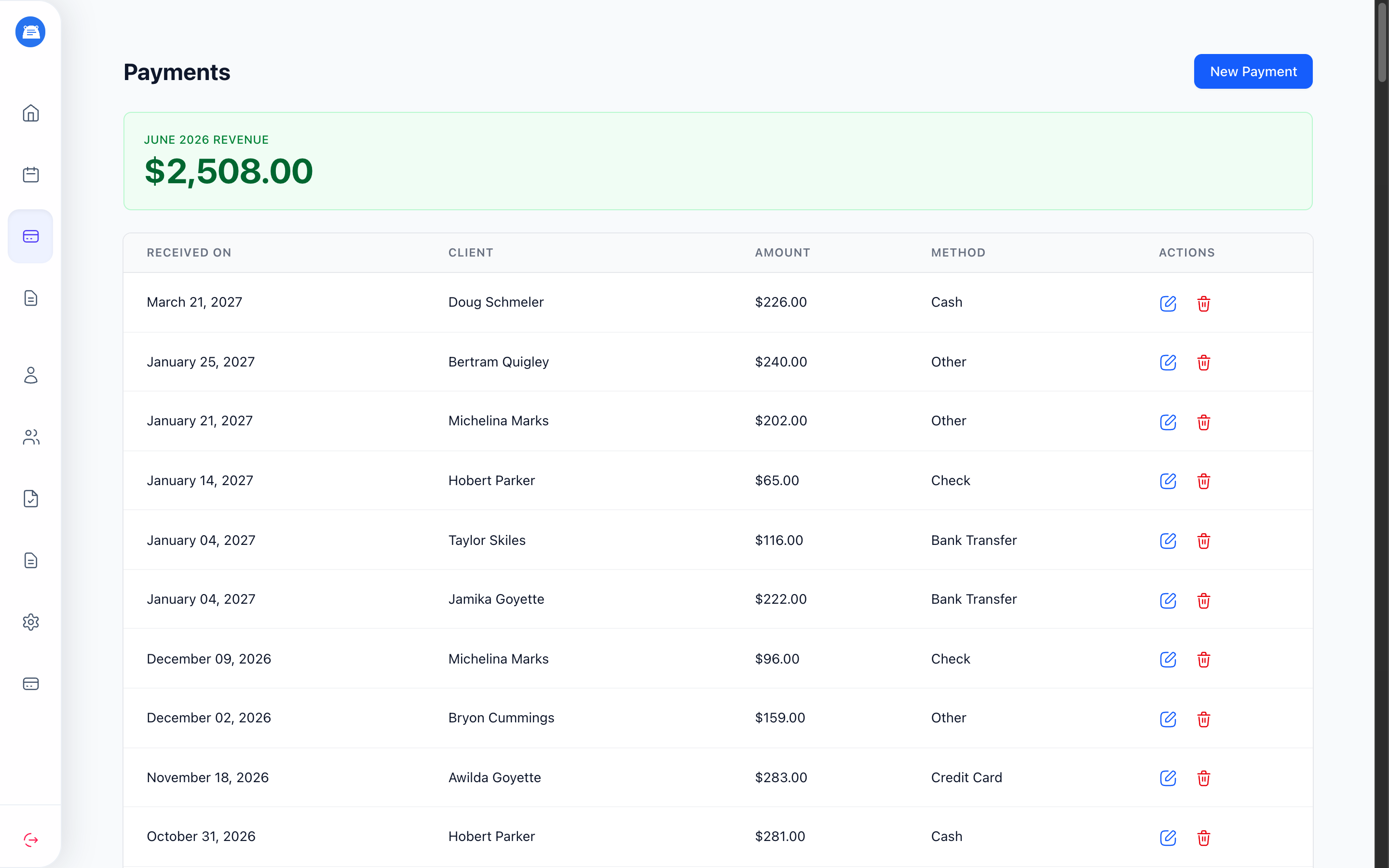
Stripe payments show up on their own, manual ones the moment you record them, and you can edit or delete your own clients’ payments. A Copay tag marks them here too, and another therapist’s client is blurred - you see the amount, not the client’s name.
Frequently Asked Questions
Section titled “Frequently Asked Questions”Do I need Stripe to track cash or check payments? No. Record Payment works without Stripe. You only need Stripe connected for card charges, payment links, and saved cards.
When does the money reach my bank? Stripe pays out to the bank account you connected during setup, on its own schedule. Open Access Stripe Dashboard from the Payment Setup page to see payout timing and history.
Can a client save more than one card? One card on file at a time. To use a different card, the client removes the current one from Billing and adds the new one.
A client paid through a link or saved card - do I need to record it? No. Payments taken through Stripe are recorded against the session and added to your Payments list automatically.
Do you store my clients’ card numbers? No. Stripe securely stores and processes all card details. We never see or store full card numbers.
Saved cards live in the client portal, where clients also book sessions and complete forms; payment links send clients straight to Stripe Checkout.