Presets
Presets are reusable starting points you can load into a treatment plan or progress note in a couple of clicks.
Two kinds of preset
Section titled “Two kinds of preset”Presets come in two flavors, matched to the two structured note types:
- Treatment plan presets capture the presenting problem, behavioral definitions, diagnosis codes, and the full goal structure - goals, their objectives, and the strategies (treatment, modality, frequency) under each - plus the treatment frequency and any additional information.
- Progress note presets capture medications, risk assessments, and the body of the note: description, objective, plan, recommendation, and additional information.
Presets are shared across your practice. Anyone on your team can load a preset another clinician saved.
Loading a preset into a note
Section titled “Loading a preset into a note”- Open a treatment plan or progress note, new or existing
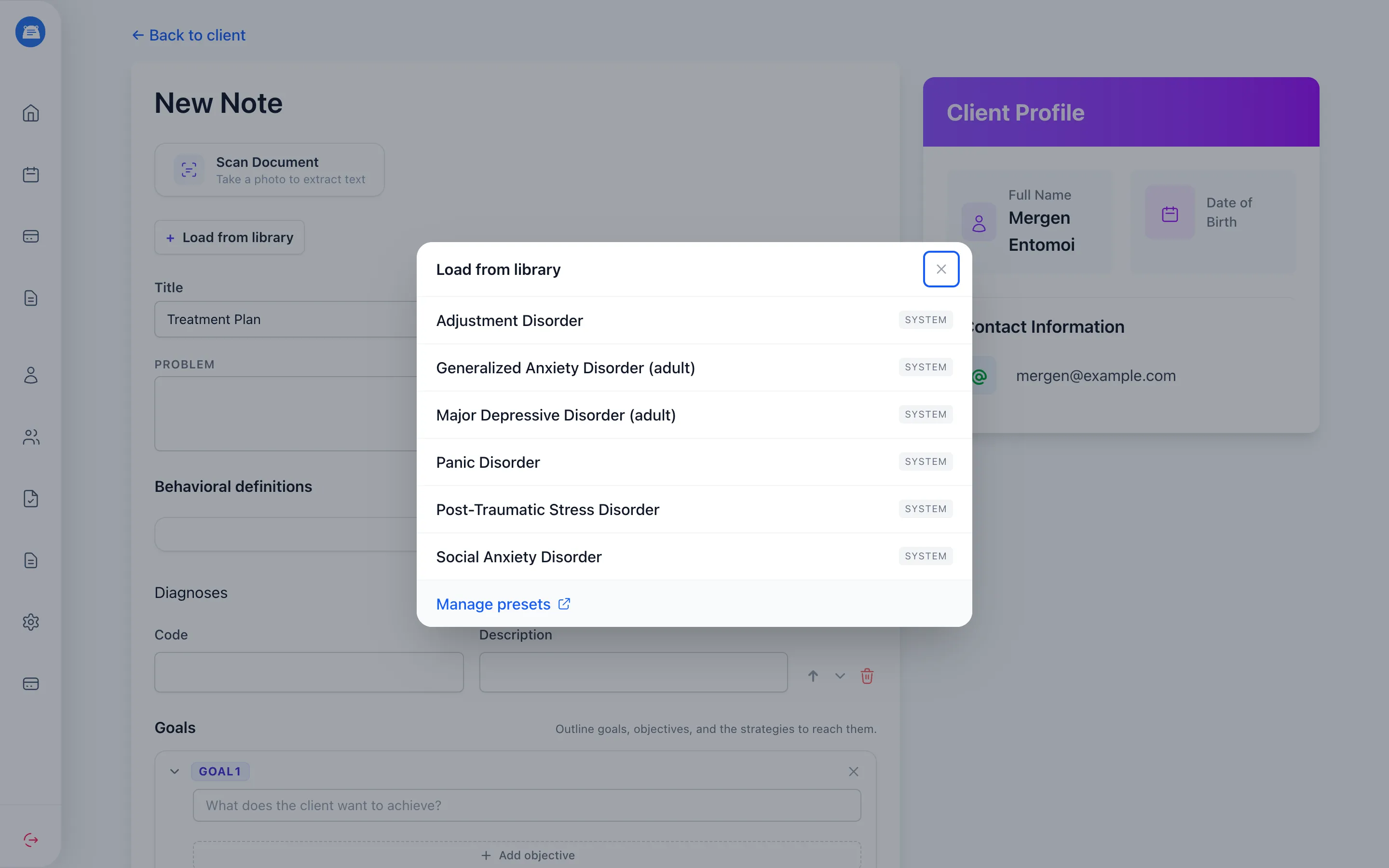
- Click Load from library at the top of the note
- Pick a preset from the list
- Tick the sections you want (and, for behavioral definitions, diagnosis codes, and goals, the individual items), then click Apply preset
The selected sections fill in, and you keep writing from there.
Loading is safe to do mid-draft. A preset never replaces what you’ve already typed: text fields get the preset’s text appended after yours, and lists like behavioral definitions and diagnosis codes gain the preset’s items alongside the ones you have. The only exceptions are treatment frequency and recommendation, which are filled in only when empty.
The built-in library
Section titled “The built-in library”Every practice starts with a set of built-in presets, so the library isn’t empty on day one. They’re tagged System in the picker and cover common diagnoses:
- Treatment plans - Adjustment Disorder, Adult ADHD Skills, Generalized Anxiety Disorder, Major Depressive Disorder, Panic Disorder, Post-Traumatic Stress Disorder, and Social Anxiety Disorder
- Progress notes - follow-up session templates for GAD, MDD, and PTSD
System presets are read-only: you can load them as often as you like, but you can’t edit or delete them. Treat them as a base - load one, then save your own version if you want a tailored starting point.
Creating your own preset
Section titled “Creating your own preset”- From any note, click Load from library, then Manage presets
- Click New treatment plan preset or New progress note preset
- Give the preset a name and fill in the fields you want pre-filled
- Save
The name is how you’ll recognize it in the picker, so make it specific - “GAD - adolescent intake” beats “Anxiety”. You only need to fill the fields worth reusing; leave the rest blank and complete them per client.
Your presets show up in the picker alongside the System ones right away, even in note forms you already have open.
Managing presets
Section titled “Managing presets”The Presets page (reached through the Manage presets link in the picker) lists your practice’s presets. Open one to edit, rename, or delete it. Deleting one doesn’t touch any notes you already created from it - those are independent the moment you load them.
Tips and gotchas
Section titled “Tips and gotchas”Presets aren’t note templates. Presets seed the structured fields of treatment plans and progress notes. If you’re looking to format free-text note bodies, that’s Note Templates, a separate feature.
Changes are practice-wide. Because presets are shared, editing or deleting one affects what your whole team sees in the picker. The change applies to future notes only - notes already written keep their content.