Couples, Families & Groups
Seeing a couple, a family, or a therapy group? Book one session with everyone in the room. Each person keeps their own chart and their own private portal - the session is the only thing they share.
Booking a Session With Everyone
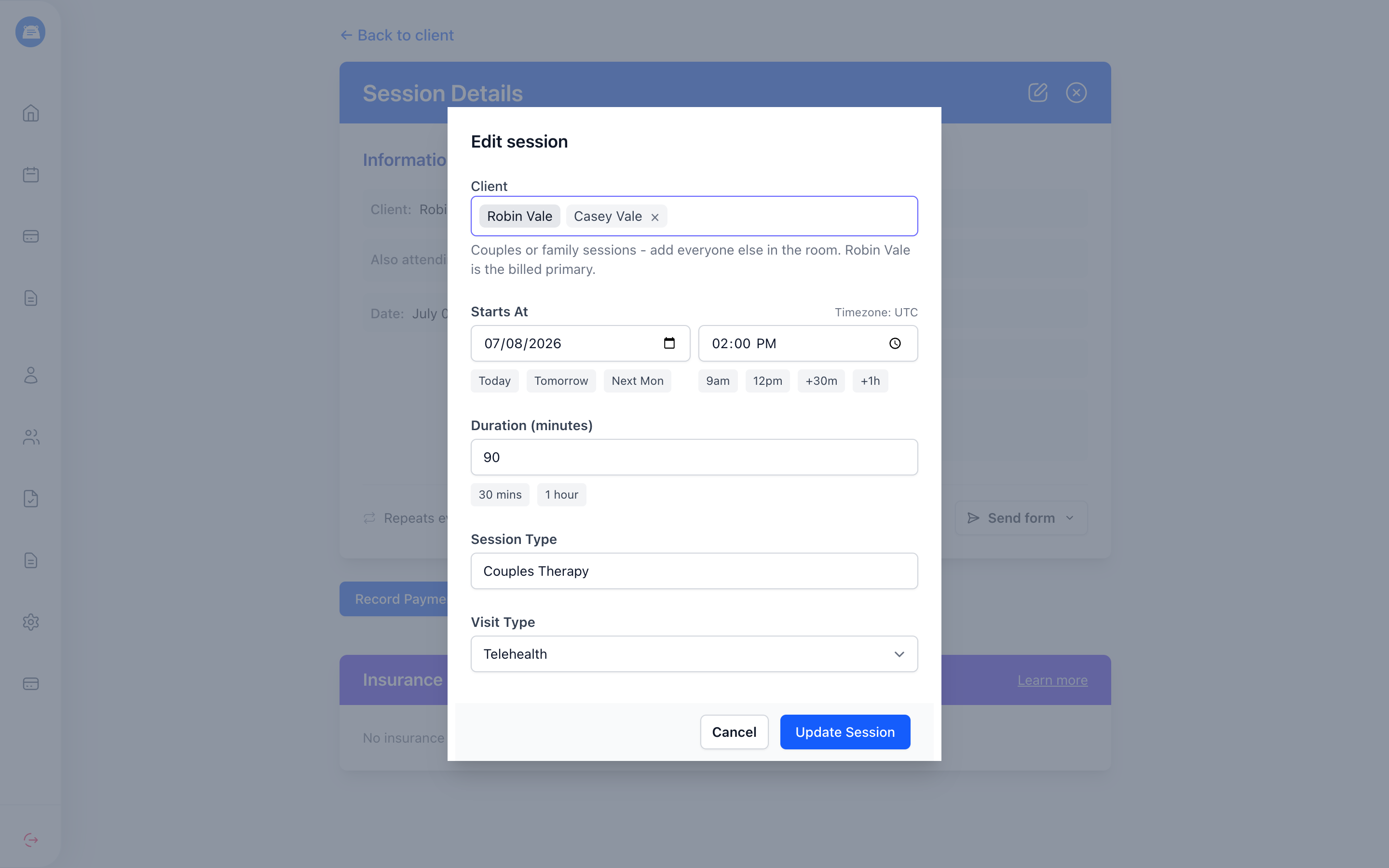
Section titled “Booking a Session With Everyone”The Clients attending field on the session form takes as many people as you need:
- Click New Session from a client’s profile, or create one from your calendar
- In Clients attending, pick everyone who’ll be in the room
- Set the time, duration, and session type as usual, and save
The session lands on every attendee’s chart.
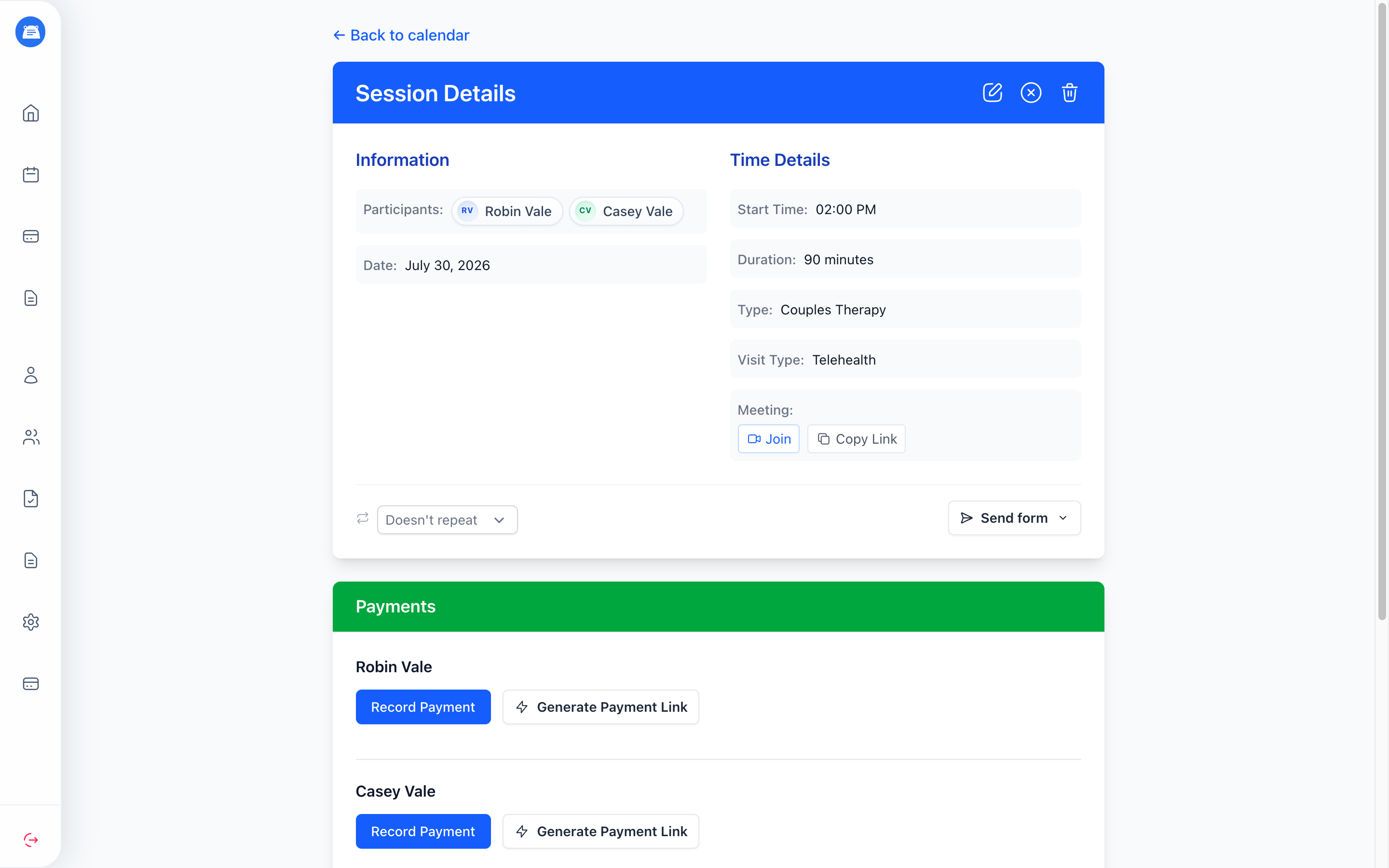
To change who’s coming, open the session and edit Clients attending - add someone who joined mid-treatment, or take out a partner who’s stepping back.
A repeating session copies its roster forward as new occurrences appear on the calendar. Editing one of them only changes that session, though: the occurrences already on the calendar keep the roster they were created with, so a change meant for the whole series has to be made on each one.
Once a client has a payment or a claim on the session, they can’t come off it until that billing record is gone - and some records never go. A payment you recorded by hand deletes, and so does a claim that was rejected or that failed before it went out. An insurance payment doesn’t, and neither does a claim the payer has accepted; voiding that claim won’t free them either, since the void leaves the claim on the record. From that point the client is on the session for good, and Leave this session in their portal stops working for them too.
Billing
Section titled “Billing”Every client on the session can be paid for on their own. Charge one partner’s card on file, send the other a payment link, and write down the cash a third handed you - the money lands against whoever it came from. Insurance works per client too: a claim goes out under that person’s plan, with their diagnoses and their service lines.
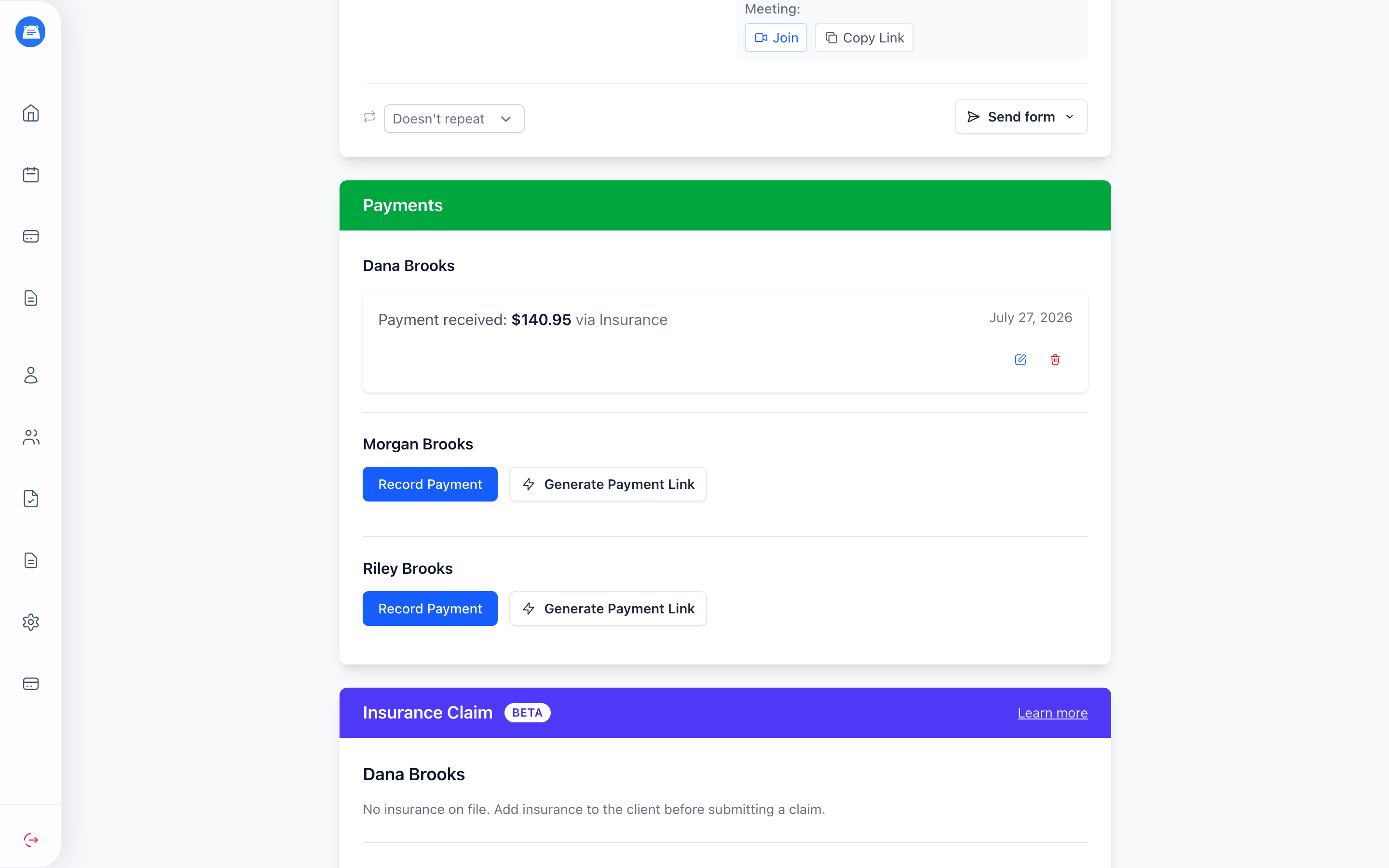
A couples or family session is usually billed once, under whichever client the work is being done for. Record the fee against that person, submit their claim, and leave the rest.
Group therapy is where you bill everyone. Each member covers their own seat and gets their own claim, submitted and paid on its own, so one member’s rejection doesn’t stall anyone else’s. The same holds for a couple who’d rather split the fee than put the whole thing on one card. See Insurance Claims for the full claim workflow.
Notes live in the chart of the person they’re about, so nothing you write about one client shows up in another’s record. Write a shared narrative in one chart and a short individual note in each of the others, or one note per person - whatever your documentation calls for.
Sending a Form to Everyone
Section titled “Sending a Form to Everyone”From a session’s details page, click Send form and pick a form. Every attendee gets their own private copy in their portal - handy for sending a whole family a consent form in one click.
Each response lands in that person’s own record; attendees never see each other’s answers. See Forms for how form delivery and the portal work.
What Clients See
Section titled “What Clients See”Everyone on the session sees it in their own client portal - the time, the type, and the button to join the video meeting. What they don’t see is who else is attending, so a group roster never leaks from one member to another.
Reminders go to every portal account on the session, and so does the cancellation notice when you cancel with Notify client via email checked.
Leaving a session
Section titled “Leaving a session”When more than one client is on a session, the portal offers Leave this session instead of Cancel this session. That takes them off the roster and leaves the session standing for everyone else - one member of a group backing out shouldn’t call off the session. You get an email that a client left, with the session’s date and time.
The 24-hour notice rule still applies, and the last client on a session cancels it rather than leaving it. A client who’s already been billed for the session can’t leave it at all - it’s the same lock that stops you taking them off the roster yourself. Calling off the session for everyone is yours to do, from its details page.
Linking Clients
Section titled “Linking Clients”Relationships record who belongs to whom - spouses, parents, children - so a chart tells you at a glance who else in your caseload is family. Linking is separate from booking: you can put anyone on a session together whether they’re linked or not.
To link two clients:
- Open a client’s profile and find Relationships in the Contact Information section
- Click Add relationship
- Pick what the other person is to this client - Spouse, Parent, or Child
- Select the client to link and click Link
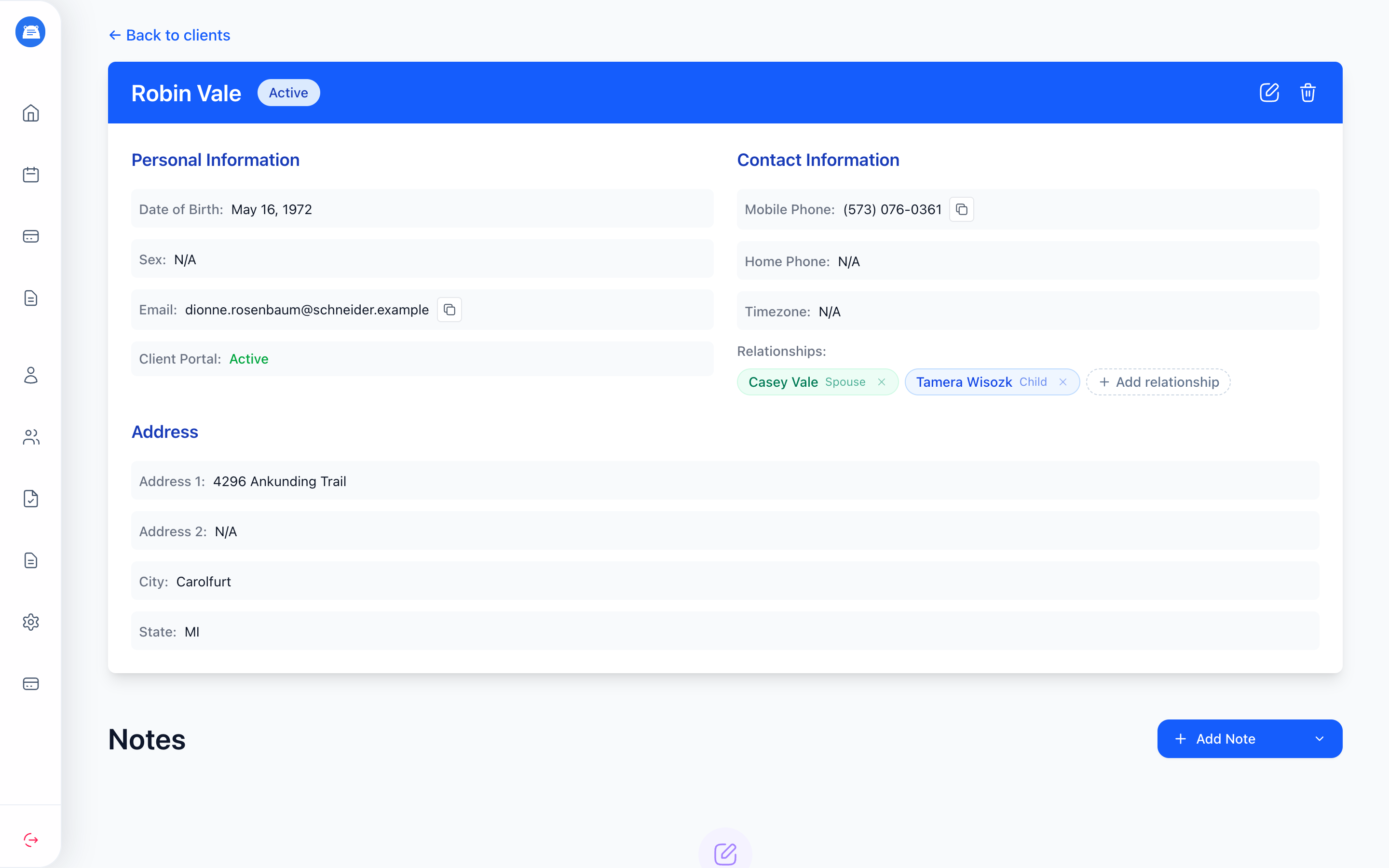
The link shows up on both charts - add a spouse from one partner’s profile and it appears on the other’s too. To remove a link, click the × on its chip.
Tips:
- Both people need to be active clients of yours. If a partner isn’t in your caseload yet, add them as a client first.
- Each client can have one spouse. Parents and children aren’t limited - a child can have two parents linked, and a parent any number of children.
Frequently Asked Questions
Section titled “Frequently Asked Questions”Do I bill a couple once or twice? Once, in most cases - one fee and one claim under whichever client the work is being done for. Billing each person on their own is there for group therapy, and for the couple who’d rather split the fee.
Can a client cancel the session for everyone else? No. From the portal a client can only leave a session that other clients are attending. Only you can cancel the session itself.
Do session reminders go to everyone? Every portal account on the session gets one.
Can I add someone to a session that’s already been paid for? Yes. Adding a client doesn’t touch anyone else’s payments or claims. Only removing a client who’s already been billed is blocked.
What happens if I unlink a couple? Nothing changes on existing sessions - past and upcoming sessions keep their attendees. Unlinking only removes the relationship from their profiles.
Can I link someone who isn’t a client, like a parent who just pays the bills? Relationships are between clients. For a parent or guardian who isn’t in treatment, invite their email to the child’s client portal instead - they can handle scheduling and payment from there.