Billing Mode / Billers
The billing view puts every session that still needs money or a claim into a few queues, so whoever handles billing can work through them one at a time. Practice admins can switch into it, and you can invite a biller who works only there.
Who can use it
Section titled “Who can use it”- Admins switch between Practice and Billing with the Mode switch at the top of the Clients page. In billing, an admin sees every clinician’s clients, not just their own.
- Billers sign in straight to the billing view and stay there. A biller sees each client’s name, contact details, insurance, sessions, payments, and claims. A biller can’t open notes, client charts, or the calendar.
- Clinicians don’t see the billing view. They keep billing their own sessions from the session page, as described in Payments and Insurance Claims.
Inviting a biller
Section titled “Inviting a biller”- Go to Staff Members
- Click Generate Invite Link and choose Biller
- Send the link to your biller
A biller can’t supervise anyone or be supervised. Each biller takes a biller seat on your subscription, priced below a therapist seat - see Pricing.
The queues
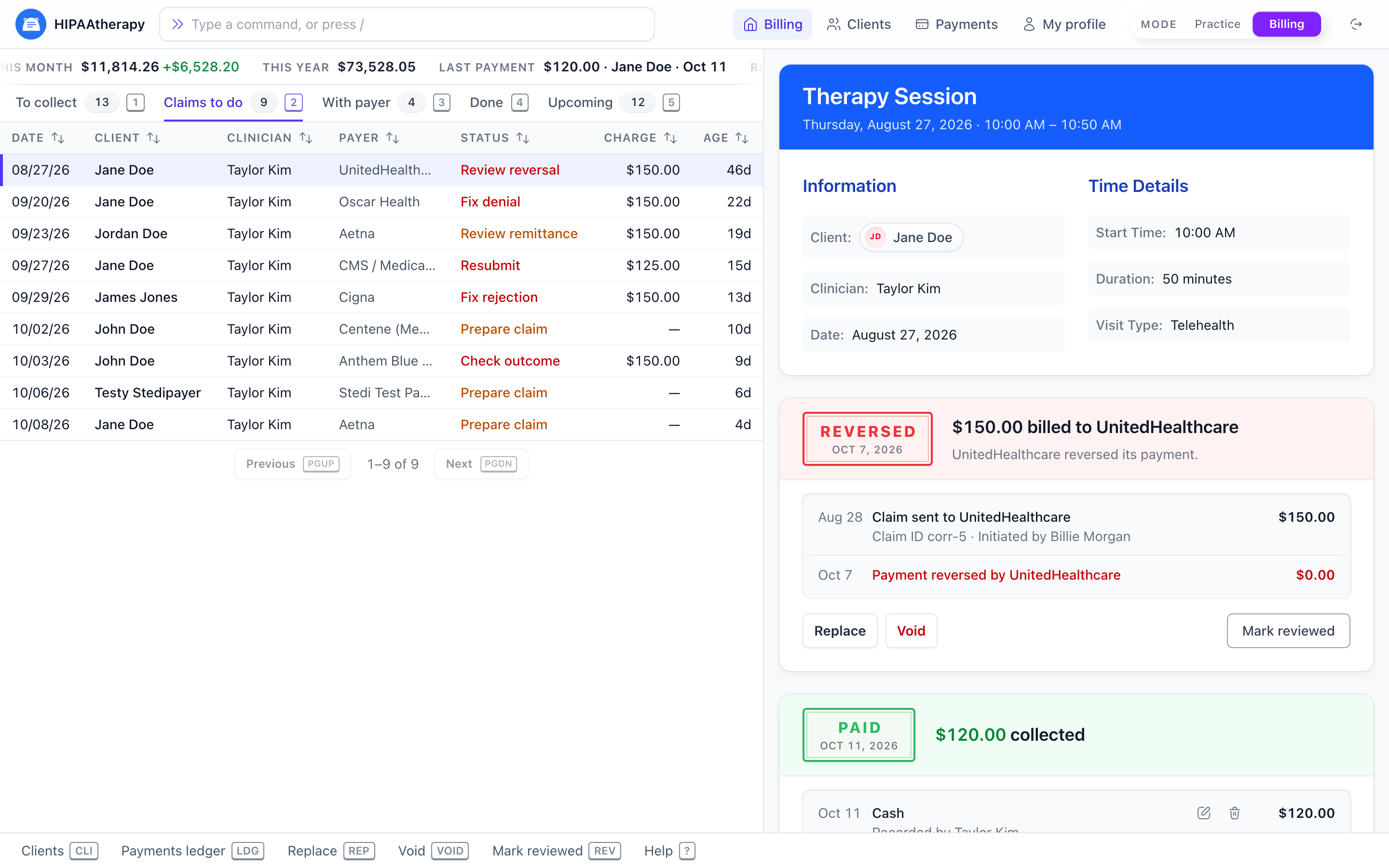
Section titled “The queues”Each row is one client’s part of one session. A couples session shows up as one row per partner.
| Queue | What’s in it |
|---|---|
| To collect | Sessions that have ended and aren’t paid yet, or not marked Nothing owed |
| Claims to do | Sessions for insured clients that need a claim, a refile after a rejection, or a review of what the payer paid |
| With payer | Claims the payer has but hasn’t sent a payment report for |
| Done | Sessions with nothing left to collect or claim |
| Upcoming | Sessions in the week ahead, so you can check eligibility before the client arrives |
A session can sit in To collect and Claims to do at the same time - the client’s copay and the insurance claim are separate pieces of work.
Working a session
Section titled “Working a session”Open a row to see the session’s payments and claims as two ledgers, each line dated, with the actions underneath.
Payments:
- Record payment, Charge card, and Payment link work as they do on the session page - see Payments.
- Nothing owed settles a session that won’t be paid, such as a free consultation or a balance you’ve decided not to collect. It moves the session out of To collect. Click Undo on the line to bring it back.
Claims:
- Submit claim opens the claim form - see Submitting a claim.
- No claim needed is for a session you won’t bill to insurance, even though the client has it - they’d rather pay out of pocket, say, or the service isn’t covered. It takes the session out of Claims to do. Undo reverses it, and so does submitting a claim later.
- Mark reviewed appears once the payer’s payment report arrives. Read what the payer paid or denied, then mark it reviewed to move the session along.
The ledger also records who marked a session Nothing owed, No claim needed, or reviewed.
Keyboard
Section titled “Keyboard”The billing view is built for working through a queue without the mouse:
- 1 to 5 switch queues
- J and K, or ↓ and ↑, move between rows, Enter opens one, Esc goes back to the queue
- Type / or any letter to run a command, such as Clients or Payments ledger
- ? lists every command and key
Clients
Section titled “Clients”The Clients screen in the billing view lists the practice’s active clients. Search for one to see their sessions and insurance, run an eligibility check, or fix their name, date of birth, or address when a claim needs it.
Frequently asked questions
Section titled “Frequently asked questions”Can a biller read session notes? No. Billers see what billing needs - client details, insurance, sessions, payments, and claims - and nothing clinical.
Do I need a biller to use the billing view? No. Any admin can switch to Billing and work the queues themselves.
Can clinicians still bill their own sessions? Yes. The session page keeps its payment and claim cards for the clinician who owns the session.
What does a biller seat cost? See Pricing.