Audit Log
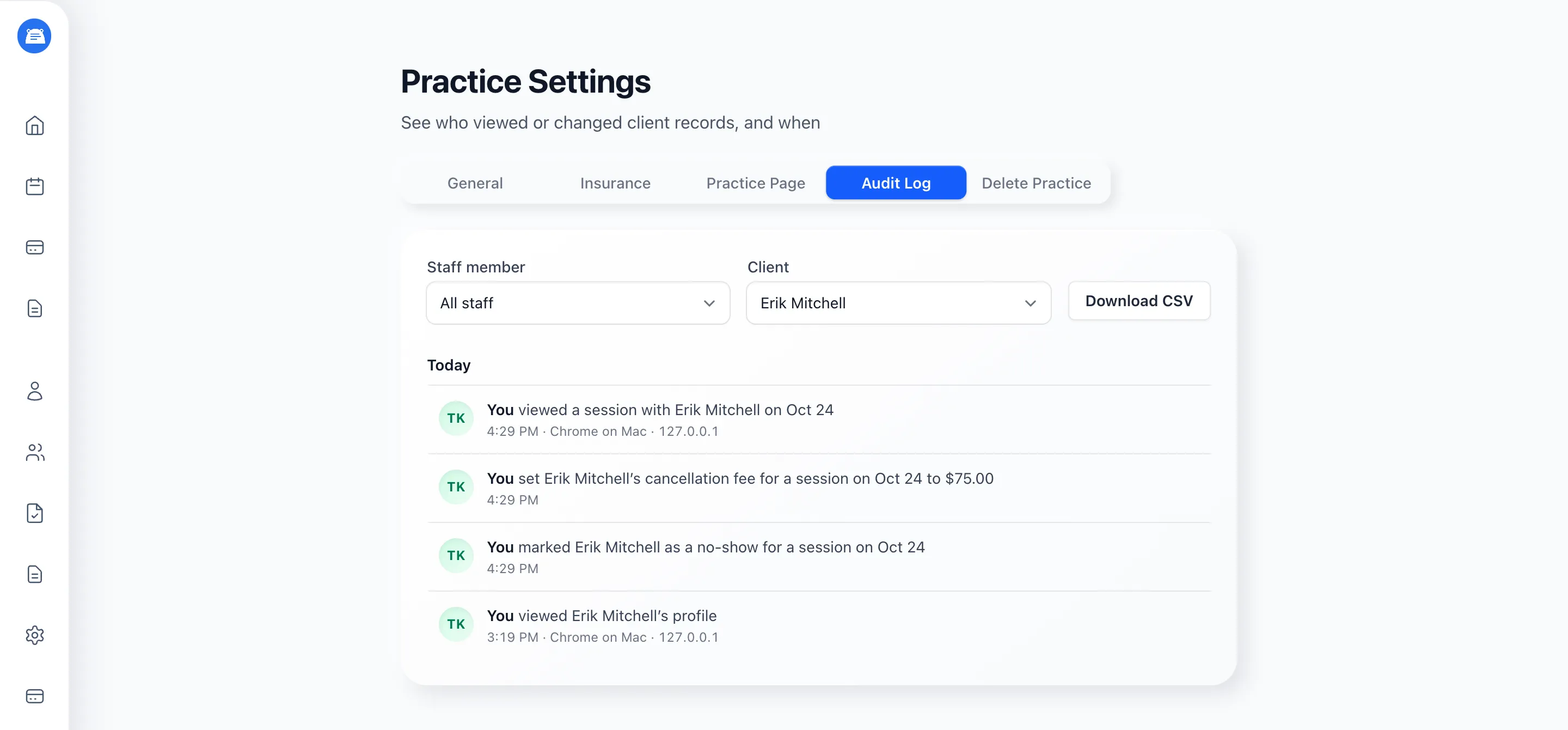
The audit log shows who opened, downloaded, or changed a client’s records, and when. Use it to answer a client’s access request, check a staff member’s activity, or hand an auditor the history they ask for.
Only admins can see it. Open Practice Settings > Audit Log.
What it records
Section titled “What it records”- Views and downloads - each time someone opens a client’s profile, a note, a form response, or a session, or downloads a note
- Changes - creating, editing, and deleting records, plus actions like cancelling a session, signing a note, or setting a cancellation fee
- Access - sign-ins, failed sign-ins, password, passkey, and two-factor changes, staff roles and supervisors, and client portal invitations
- Blocked attempts - a staff member trying to open a client they can’t see, flagged Blocked
Each entry shows the time, the device, and the IP address. Viewing or downloading the audit log is itself recorded.
Find one client’s history
Section titled “Find one client’s history”Pick a client under Client, or click the clock icon on a client’s profile to open their history directly.
With more than one staff member, pick someone under Staff member to see only their activity. The Client list then narrows to that staff member’s clients.
Download a copy
Section titled “Download a copy”Click Download CSV for a spreadsheet of every entry that matches your filters: time, who, activity, status, clients, IP address, and device.