Files
Keep the paperwork that comes with a client - referrals, releases of information, insurance cards, outside records - on their profile, next to their notes and forms. Clients can send you documents and photos from their portal, and you can share a file with your biller when they need it for a claim.
Upload a file to a client’s profile
Section titled “Upload a file to a client’s profile”Upload files from the Files section of your client’s profile. Each file can be up to 500 MB.
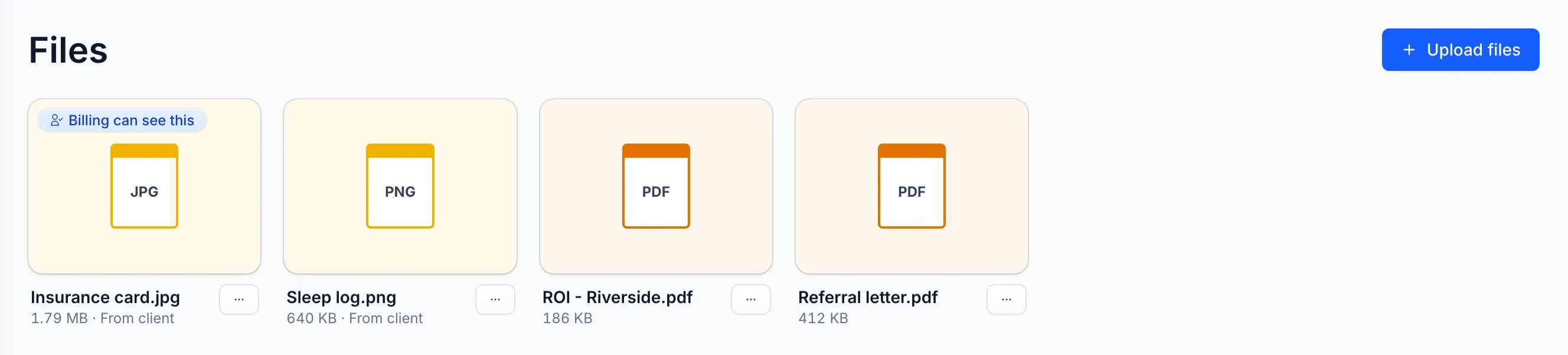
The Files section shows up once you’ve accepted a client. An intake client from a new booking doesn’t have one yet.
Files from clients
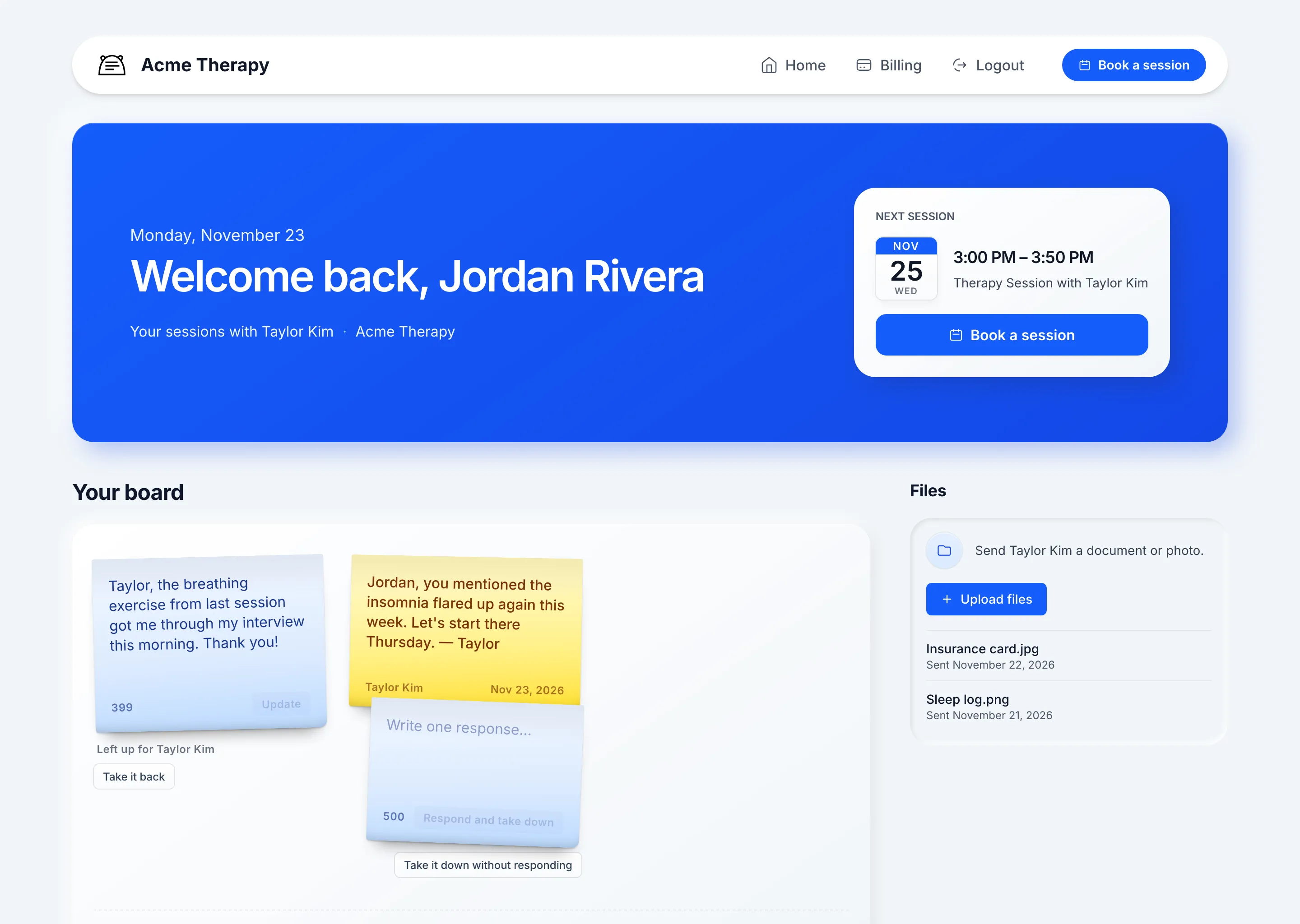
Section titled “Files from clients”Clients send you documents and photos from their portal, and they land on the client’s profile marked From client. Clients only see the files they’ve sent you, never the ones you upload.
The Files page
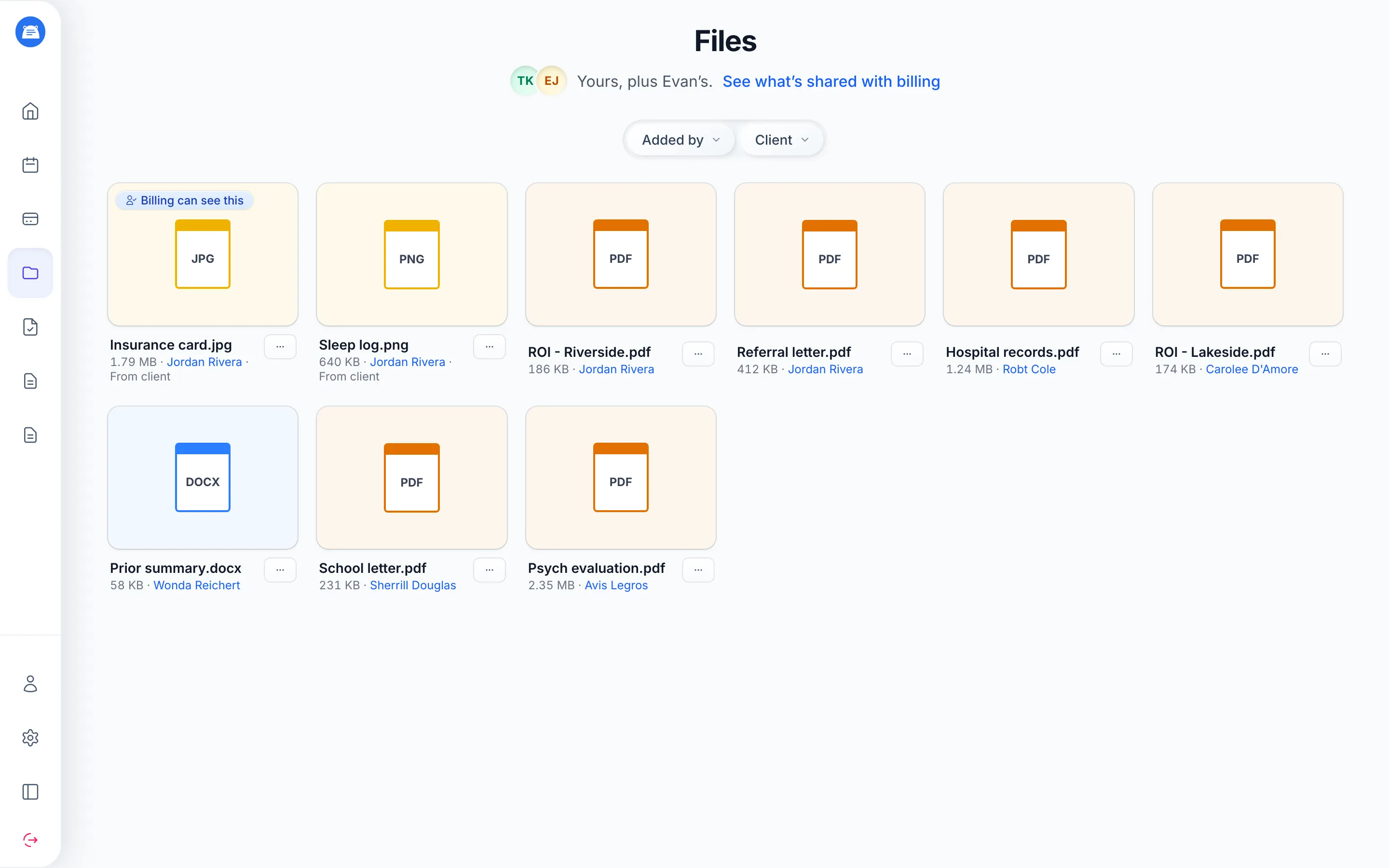
Section titled “The Files page”Files in the main navigation lists every file you can open: the ones on your clients’ profiles, the ones in notes you can read, and the ones your clients sent you. Filter it by client. If you supervise clinicians, you see their clients’ files too and can filter by who added each one. Your supervisor sees yours.
Open or delete a file
Section titled “Open or delete a file”PDFs and common images, like JPEG and PNG, open in the browser. Other files, like Word documents, spreadsheets, and text files, download instead.
You can delete files you uploaded and files a client sent you. Deleting is permanent. A file inside a signed-off note can’t be deleted, since a signed-off note can’t change. Deleting a file that’s in a draft note takes it out of that note too.
Share a file with billing
Section titled “Share a file with billing”Billers don’t see your clients’ files. When your biller needs one - an insurance card, say, or a referral for a claim - choose Share with billing from the menu of a file on the client’s profile. Admins and billers can then open it from the client’s Shared files in the billing view until you stop sharing it.
You can share your own clients’ files once your practice has an admin or biller other than you.
Who saw what
Section titled “Who saw what”Uploading, opening, downloading, deleting, and sharing a file each go in the audit log under that client.
Storage
Section titled “Storage”Each practice has a set amount of file storage. If yours fills up, uploads stop, including from your clients’ portals. Reach out to us if you need more room.
Frequently asked questions
Section titled “Frequently asked questions”Can clients see files I upload? No. Files you upload stay on your side. Clients only see the files they sent you.
Can my supervisor open my clients’ files? Yes. Supervisors can open their supervisees’ clients’ files, the same way they can read their notes.
Can a biller open every file? No. A biller can only open the files you’ve shared with billing.
Why can’t I upload files for a new booking? Intake clients don’t have a Files section. Accept the client first, then upload.